Fix Experience Issues
Learn why experience issues happen, what the common error types mean, and how to resolve them.
Table of Contents
Experience issues (also called step errors) occur when Appcues can't find, identify, or display the element a Tooltip, Pin or Embed is anchored to. Most reported issues are warnings that resolve on their own — not actual failures.
Get alerts about experience errors. The Appcues App watches your live experiences and raises a recommendation when one starts failing for users — a sudden spike, or a slower climb over several days. See Experience issue spike alerts.
Prerequisites
- A published experience with element-based patterns (Tooltips, Pins, Embeds)
- Access to the Appcues Builder
Check the Issues Report
- Open the experience in Studio and go to its Analytics page.
- Select a date range. The Issues Report shows the 25 most recent issues, including the step number, User ID, URL, issue type, and when it last occurred.
- To see all issues, export the experience's CSV and filter for
step_errorevents.
Understand issue types
"Could not find element"
This means the target element wasn't on the page when the experience loaded. Common causes:
- Your engineering team renamed or removed the element.
- The element lives inside a dropdown, modal, or other dynamic container the user hasn't opened yet.
- Some users don't have access to the element (for example, an admin-only tab).
- The element exists on desktop but is hidden on mobile.
"Found multiple elements"
The CSS selector matches more than one element on the page. The selector needs to be more specific.
"Element is present but not visible"
The element exists in the DOM but can't be scrolled to or is off-screen — often due to a small browser window or a hidden dynamic container.
Determine if it's a real problem
Many reported issues are temporary. When Appcues can't find an element, it fires a step_error event. If the element appears later, Appcues recovers automatically and fires an error_recovered event. The Issues Report lists all step_error events regardless of recovery.
To check whether an issue actually affected users:
- Export the experience's CSV.
- Search for
step_errorevents for the affected User ID. - Check whether each error has a corresponding
error_recoveredevent. If it does, the user saw the step normally.
Fix a broken selector
Option 1: Rebuild the selector in the Builder
Open your page and right-click the target element, then select Inspect to find a unique attribute (an ID, a stable class name, or a data- attribute).
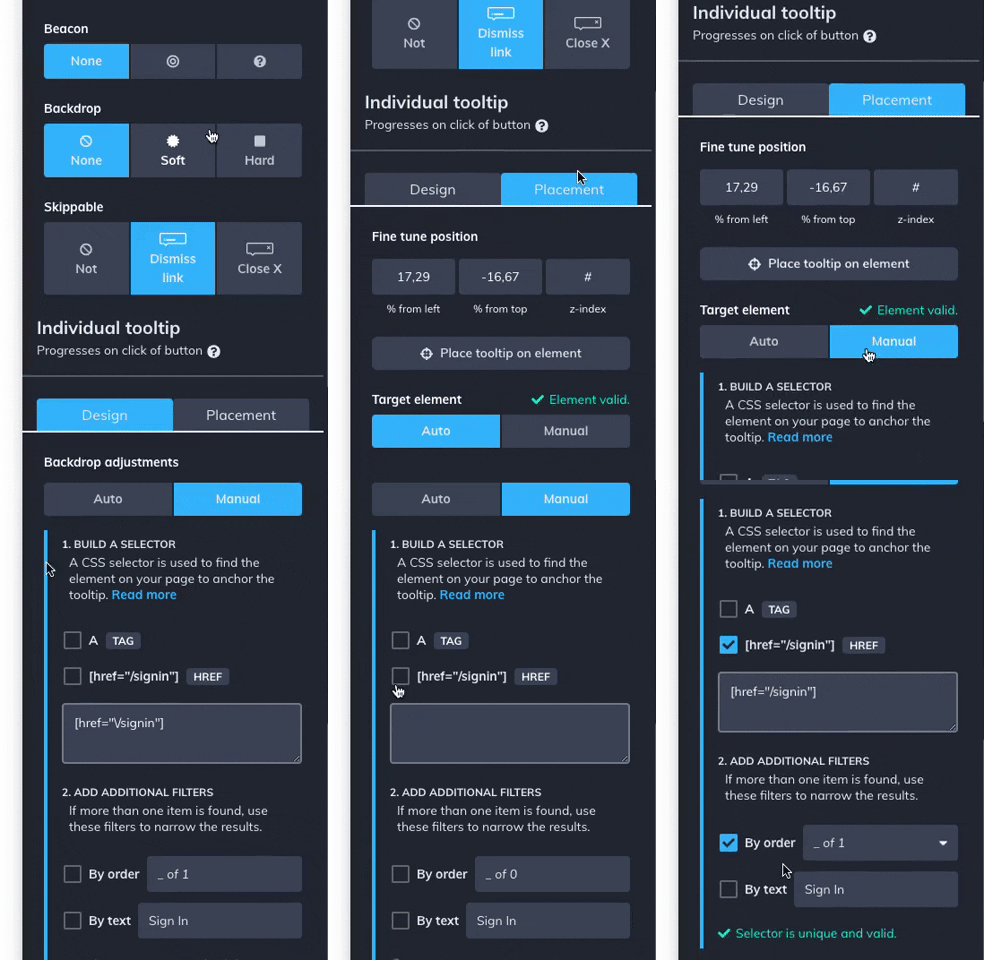
- In the Appcues Builder, click the cog icon on the affected step.
- Go to the Placement tab and select Manual.
- Enter the new, more specific selector. Use the By Order or By Text filters if multiple elements share the same selector.
See Troubleshoot element targeting for guidelines.
Option 2: Add a stable selector in your app's code
Work with your engineering team to add a unique, stable CSS selector (such as a data-appcues attribute) to the target element. This prevents future breakage when the UI changes. See Troubleshoot element targeting and Prepare your frontend for element targeting for guidelines.
Prevent issues for specific audiences
If the element only exists for certain users (for example, admins), update the experience's audience targeting so it only shows to users who have access to that element. If the issue is a desktop-vs-mobile visibility problem, target the experience to Device type: Desktop.
Still stuck?
Collect the following and contact support:
- The experience URL from Studio (copy from your browser's address bar on the settings page)
- The affected User ID
- The page URL where the issue occurs
- A screenshot or screen recording showing the problem
- Any console errors visible in the browser's developer tools