Track an event from a Button
Learn more about tracking events in buttons in your experiences and how to use them
Table of Contents
Track button clicks as custom events so you can monitor engagement, target other experiences based on those clicks, and send the data to third-party tools.
Prerequisites
- A published (or ready-to-publish) Flow, Pin, or Banner with at least one button.
Add event tracking to a button
- Open the experience in the Builder.
- Select the button you want to track.
- Toggle Track Event on.
Enter an event name (for example, "Dismissed Welcome Flow" or "Clicked Upgrade CTA"). Choose a name that clearly describes the action — you'll reference it later in targeting rules and analytics.

Activate the event
The event won't appear in targeting options or analytics until it has been triggered at least once. To trigger it:
- Go to the Flow's Settings page and set the trigger to Only manually.
- Publish the Flow.
- Copy the permalink and open it in your browser.
- Click the button that has event tracking enabled.
- Alternatively, use Test mode to trigger the button without changing the Flow's trigger setting.
The event may take a few minutes to appear after the first click.
Confirm it worked
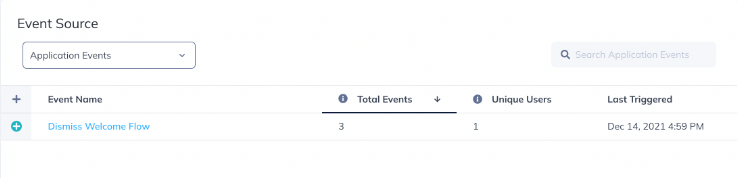
- Open Events Explorer and search for your event name. It appears under Application Events.
- Click the event to see which users interacted with the button and when.
Use button events for targeting
Button events are especially useful for controlling when experiences show or stop showing.
Example — Stop showing a Flow after a user dismisses it: Add a "Dismiss" button with a tracked event called "Dismissed Welcome Flow." In the same Flow's audience targeting, add the condition: Dismissed Welcome Flow has not occurred. Combined with the trigger option Show every time, the Flow keeps appearing until the user clicks the dismiss button. Once the event fires, the condition turns false and the Flow stops showing.
Example — Track clicks on a URL button: Add event tracking to a Go to URL button (for instance, one that links to a webinar registration page). Monitor how many users clicked the button in Events Explorer, then compare against actual registrations.
For another practical pattern, see Add a "Snooze" / "Show later" option.
Send button events to other tools
Button events are automatically sent through Appcues' frontend integrations, as well as HubSpot and Salesforce.
If the event isn't appearing
- Not in targeting options — The event must be triggered at least once. Publish the Flow, open it via permalink or Test mode, and click the button.
- Not in Events Explorer — Wait a few minutes after the first click, then refresh. If it still doesn't appear, confirm the Track Event toggle is on and the event has a name.
If the issue persists, collect the Flow URL from Studio, the affected user's User ID, and a screenshot of the button's settings panel, then contact support.