Troubleshoot Checklists
Diagnose and fix common issues with Checklists not appearing, items not checking off, dismissed Checklists, and targeting mismatches.
Table of Contents
Checklist isn't appearing
Work through these checks in order. Most issues are caught in the first three steps.
Check that Appcues is installed
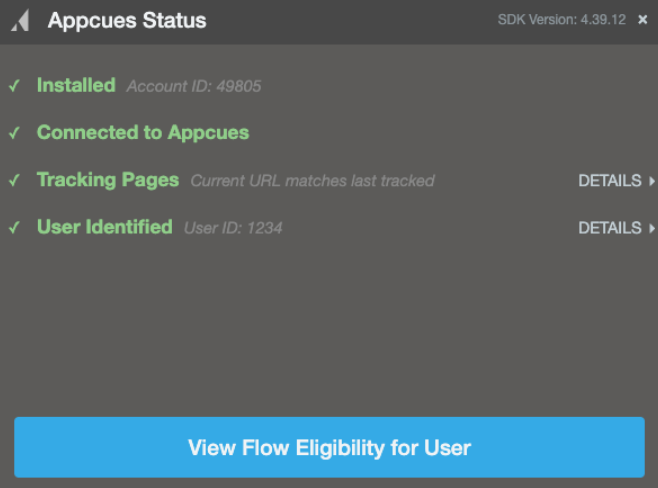
Open the Appcues debugger on the page where you expect the Checklist to show. Confirm all rows display green checkmarks.
If any rows show red errors, you have an installation issue that needs to be resolved before the Checklist can appear. See Installation Testing / Debugging for next steps.
Check user eligibility
- Open the Users page in Studio and search for the affected user. See Finding a User if you need help locating them.
- Open the Eligibility tab. This shows all live Checklists, and whether the user currently qualifies for each one.
- If the Checklist shows as Ineligible, click it to see the reason:
- A red X next to Audiences means the user doesn't match the audience targeting rules. Click View details to see which conditions fail.
Check page targeting
Use the Test Page Targeting tool on your Checklist's settings page.
- Open your Checklist's settings page in Studio.
- Enter the URL where you expect the Checklist to appear.
- The tool reports whether the URL matches your page and domain conditions.
If the result says "won't show", review your URL conditions. Common mistakes are covered in the Page targeting isn't matching section below.
Also confirm the domain where you're testing is selected in your Checklist's page targeting settings. If you're testing in staging but only have your production domain selected, the Checklist won't appear.
User dismissed the Checklist
If the Checklist is configured as dismissible and a user dismisses it, it won't appear to them again. This is permanent — there is no built-in way for the user to bring it back.
To verify whether a user dismissed the Checklist:
- Go to Events Explorer in Studio.
- Filter by Checklist events and find your Checklist.
- Click the Checklist Skipped event to open it.
- Search for the user. If they appear in the list, they dismissed the Checklist. Adjust the date range at the top of the page if needed.
If you need the Checklist to reappear for a user who dismissed it, reset the user's profile from their user page in Studio. The next time the user is identified, their profile is recreated and they become eligible again.
Resetting a user profile clears all Flow history, event history, and properties — not just Checklist data. Use this with caution.
Checklist item isn't checking off
The Checklist appears, but one or more items stay incomplete even though the user has taken the expected action.
Flow completion criteria
If the item uses a Flow completion condition, the user must complete the specific Step Group defined in the item — not just any part of the Flow.
- Open the Checklist in Studio and check which Step Group the item references.
- Confirm the user completed the Flow through that Step Group. If the user exited the Flow before reaching it, the item won't check off. Confirm the referenced Flow is currently published.
- Test by running the Flow yourself and completing it through the referenced Step Group.
User property criteria
If the item uses a User property condition, check the user's profile to confirm the property matches the expected value.
- Go to the Users page and search for the user.
- Open their profile and find the property referenced in the Checklist item.
- Confirm the value matches exactly — including case sensitivity and data type (string vs. number).
Event criteria
If the item uses an Event condition, the user must have triggered that specific event.
- Go to Events Explorer and search for the event.
- Check whether the user appears in the list of users who triggered it. Adjust the date range at the top of the page if needed.
- If the event hasn't been triggered, confirm with your development team that the event is being sent via
Appcues.track().
Account-level completion
If the Checklist item is set to be completed by anyone on the account (using group properties), the item checks off when any user in the same account meets the criteria — not necessarily the current user. If the item isn't checking off, verify the group property value on the account, not just the individual user.
This type of setup requires special configuration that is explained here: Create Checklist items that can be completed by anyone on an account.
User properties are stale or missing
If you're targeting the Checklist based on a user property that is no longer being sent — or is being sent with incorrect values — users won't match the audience criteria.
Check the Properties page in Studio. Find the property you're targeting and check the Last received timestamp. If the property hasn't been received recently, work with your development team to confirm it's still being sent in the Appcues.identify() call.
Page targeting isn't matching
Regex patterns
If using a regex pattern for URL matching, confirm:
- The operator is set to matches regex (not "contains" or "is").
- The pattern is valid. Test it with a regex tester.
AND vs OR conditions
If using multiple URL conditions, check whether they use All (AND) or Any (OR) logic.
Example of a common mistake: You want the Checklist to appear on pages containing "account", "dashboard", or "payments." If you use All (AND), the Checklist only appears on a URL that contains all three words simultaneously (e.g., https://yourapp.com/account/dashboard/payments) — which may not exist.
Switch to Any (OR) so the Checklist appears on any page containing at least one of those words.
Content Security Policy blocking Appcues
Some applications use a Content Security Policy (CSP) that blocks external resources not explicitly allowed. This can prevent the Appcues SDK or Builder from loading.
- Open your browser's console (right-click > Inspect > Console tab) and look for errors that mention a Content Security Policy related to Appcues.
- If you see CSP errors, your development team needs to add Appcues domains to the allow list. See Content Security Policies for the required configuration.
Still stuck?
Collect the following and contact support:
- The Checklist name and its URL from Studio (copy from your browser's address bar on the Checklist's settings page).
- The affected user's User ID.
- The page URL where the issue occurs.
- If an item isn't checking off: the item name, completion criteria type (Flow, property, or event), and the specific value or Step Group it references.
- A screenshot or screen recording showing the problem.
- Any console errors visible in the browser's developer tools.