Target and Publish Mobile Flows
Set who sees a mobile Flow, when it triggers, and push it live.
Table of Contents
Targeting and triggering control who sees a mobile Flow and when it appears. You set both on the Flow's settings page, then publish to go live.
Prerequisites
- A mobile Flow built in the mobile builder.
- The Appcues SDK installed and initialized in your app. Screen and event triggering also require screen tracking to be set up.
Open the Flow settings
Once you've built a Flow in the mobile builder, click the purple Target and Publish button to go to the Flow's settings page.
If you're already in your Appcues account, go to Flows, find the Flow you want to adjust, click the gear icon, and click Settings.
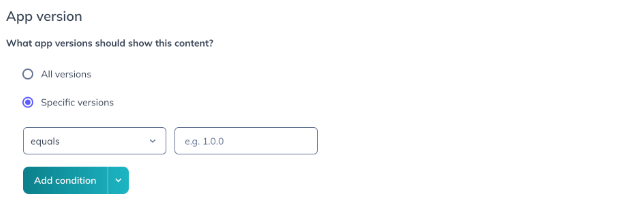
Target by app version
You can target your mobile Flow to specific app versions, including conditions such as greater-than or less-than a particular version number. This is useful when:
- You want users on an older version of the app to update.
- You have messaging appropriate only to older versions of your app.
- There's an improvement on a specific app version and you want to send an update via a mobile Flow.
- You want to test a mobile Flow on a specific version of your app.
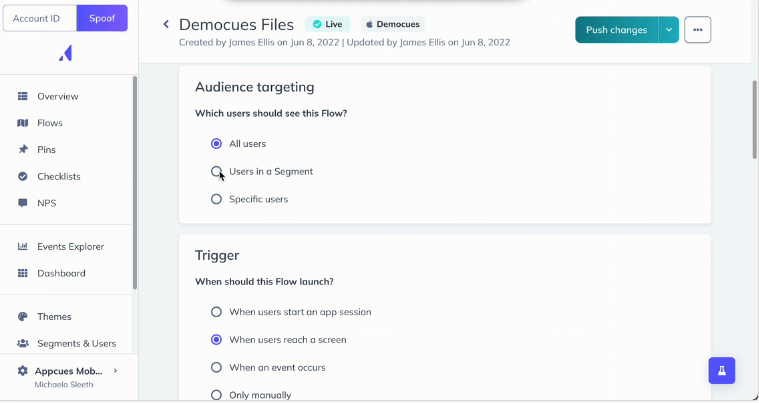
Audience targeting
- Target a mobile Flow to all users, all users in a segment, or specific users.
- Mobile-specific auto-properties are also available for targeting, such as operating system, app name, app version, and device type. Learn more about auto-properties in the mobile installation documentation.
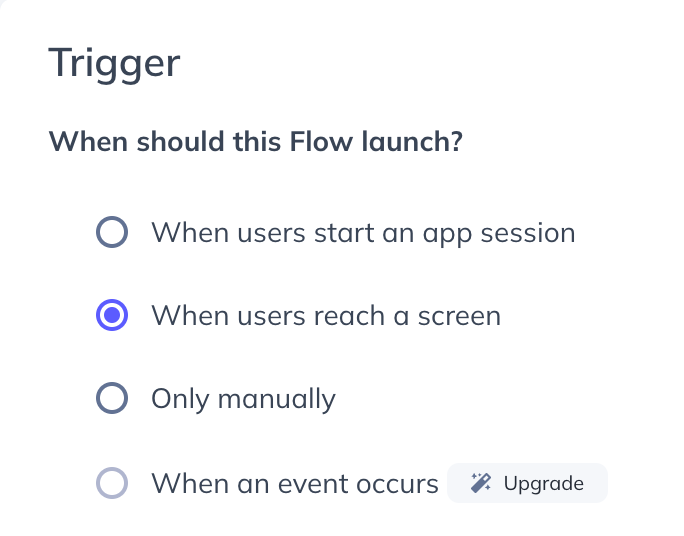
Set up triggering
Mobile Flows can trigger based on app sessions, screen activity, or in-app events.
When users start an app session
This fires when a user opens the app, or foregrounds it after being in the background longer than the session timeout (default is 30 minutes).
Note: if your app has a sign-in page before the home screen, "When users start an app session" shows the Flow on the sign-in page, which may be too soon for some use cases.
When users reach a screen
Screens are recorded when a user sees a new view in the app — a good option to trigger a Flow based on where the user is. Screen targeting is a common use case for mobile Modals, similar to page targeting in Appcues web. Screens can be targeted once the Appcues SDK is installed, initialized, and screen tracking is set up.
To learn how screen names are sent to Appcues, see the Mobile Debugger.
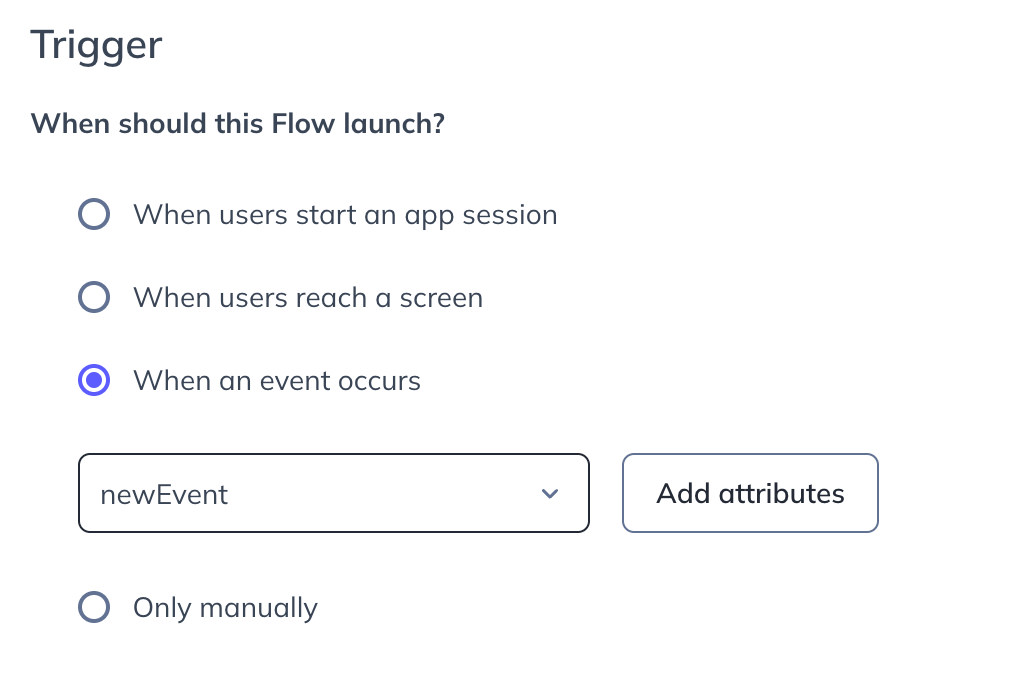
When an event occurs
Events are actions your users take in the app — a good option to trigger a Flow based on user behavior. Events can be targeted once the Appcues SDK is installed and initialized.
To learn how event names are sent to Appcues, see the Mobile Debugger.
This feature is available on select plans and may be offered as an add-on. Please check your account details page for more information or contact our team for assistance.
Goals, frequency, priority, and actions
These settings are available on a mobile Flow's settings page and work just like they do for web Flows. To learn about their functionality and use cases, see the Appcues documentation.
Publish a mobile Flow
The mobile Flow won't go live until you click Publish on the settings page. To see your Flow before pushing it live, preview your mobile Flow.
Keep in mind the preview won't reflect your targeting and triggering settings — it just shows what the Flow will look like on your app before publishing.
Once you're satisfied with the Flow and its settings, click Publish to go live. We encourage testing on your app afterward to confirm the Flow displays according to your targeting settings.
Confirm it worked
- The Flow's status shows as published on the settings page.
- On a device that matches your targeting, the Flow appears at the trigger you configured (app session, screen, or event).
If the Flow isn't showing
- Confirm the Flow is published, not just saved.
- Confirm the test user and device match your audience and app-version targeting.
- For screen or event triggers, confirm the SDK is initialized and screen/event tracking is set up — verify the screen and event names with the Mobile Debugger.
- See Troubleshoot Mobile Flows for more.
Still stuck?
Collect the following and contact support:
- The Flow's settings URL.
- The affected user's ID and the device platform and OS version.
- The trigger type and targeting you configured.
- The screen or event name you're targeting (from the Mobile Debugger).