US English (US)
ES Spanish

Submit Article Requests

Do you have a suggestion for an article you would like to see created?
Feel free to submit this form and add your suggestions to our document board.

Please fill out the contact form below and we will reply as soon as possible.

  • Integration Hub
  • Contact Us
English (US)
US English (US)
ES Spanish
  • Docs home
  • Web Experiences
  • Targeting and Triggering

Manage Available Domains

Control which domains your Appcues experiences can appear on by adding them to your account settings and selecting them in each experience's page targeting.

Updated at March 30th, 2026

Submit Article Requests

Do you have a suggestion for an article you would like to see created?
Feel free to submit this form and add your suggestions to our document board.

Please fill out the contact form with the details about the help content you'd like to see.

  • Home

  • Getting Started

    • Installation & Developers

      • Web Experiences

        • Mobile Experiences

          • Workflows

            • Analytics & Data

              • Account Management

                • Best Practices

                  • Integrations

                    Table of Contents

                    Prerequisites Add domains to your account Target domains on an experience Add wildcard domains How wildcard matching works Add a wildcard domain Confirm it worked If a domain isn't showing in the list

                    Prerequisites

                    • The Appcues is installed on the domains you want to target.

                    Add domains to your account

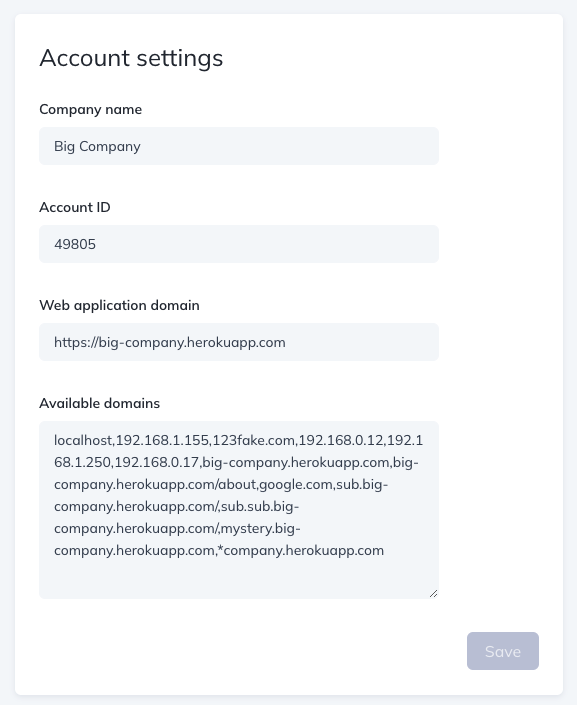
                    1. Go to Settings > Account > Available Domains.
                    2. Enter each domain separated by a comma. Do not include https:// or trailing slashes — just the domain itself (e.g., app.yourcompany.com).

                    Domains are case sensitive. Enter them exactly as they appear in your browser's address bar.

                    • Omit www. by default. If your experiences don't load, try adding the www. version as a separate entry.
                    • For localhost testing, enter localhost without a port number.
                    1. Click Save. Your domains are now available for targeting across all experiences.
                    Target domains on an experience

                    1. Open the experience in Studio and go to the Settings step.
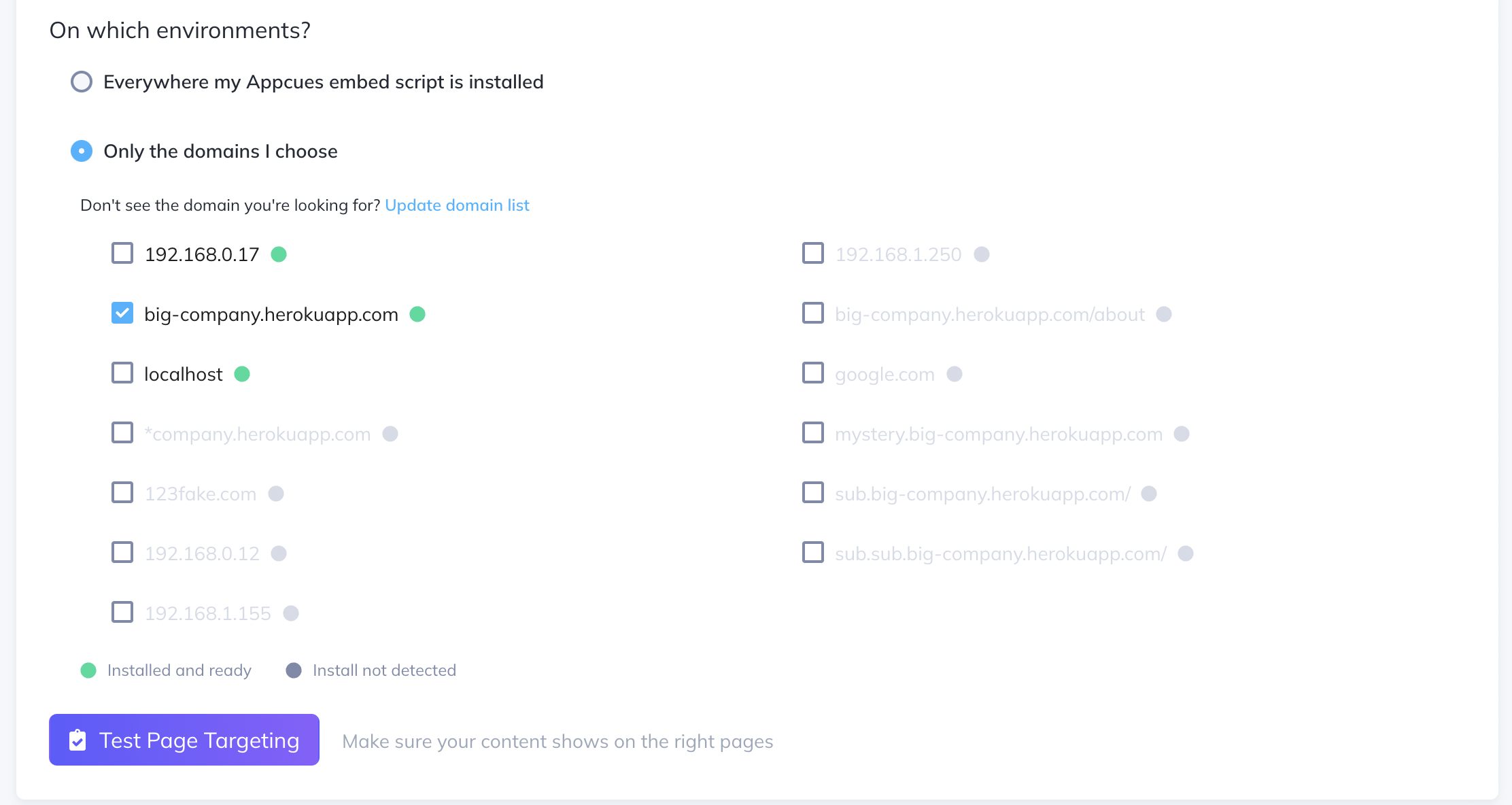
                    2. Under Page Targeting > On which environments?, select the domains where this experience should appear.
                    3. A green circle next to a domain means Appcues is installed there. If a domain is missing from the list, add it to your account settings first (see above).

                    A grey circle doesn't necessarily mean Appcues isn't installed. The installation indicator is based on tracked page views, so newly added domains may take some time to update in the UI. The most reliable way to verify installation is to open the Appcues debugger on the domain and confirm all rows show green checkmarks.
                     

                    Add wildcard domains

                    Use a wildcard (*) to match multiple subdomains at once. This is useful when your team creates dynamic environments — like per-developer staging instances — that share a common base domain.

                    How wildcard matching works

                    A * replaces any single subdomain segment (the part between dots). Here are examples of what matches and what doesn't for common patterns:

                    Pattern: *.staging.yourapp.com

                    URL Match? Why
                    steve.staging.yourapp.com Yes * matches steve
                    sally.staging.yourapp.com Yes * matches sally
                    staging.yourapp.com No Nothing to match — the * segment is missing entirely
                    dev.test.staging.yourapp.com No * matches one segment, not two (dev.test)

                    Pattern: *.yourapp.com

                    URL Match? Why
                    app.yourapp.com Yes * matches app
                    staging.yourapp.com Yes * matches staging
                    yourapp.com No No subdomain segment for * to match

                    Add a wildcard domain

                    1. Go to Settings > Account > Available Domains.
                    2. Enter the wildcard pattern (e.g., *.staging.yourapp.com) in the domain list, separated by commas from your other domains.
                    3. Click Save.
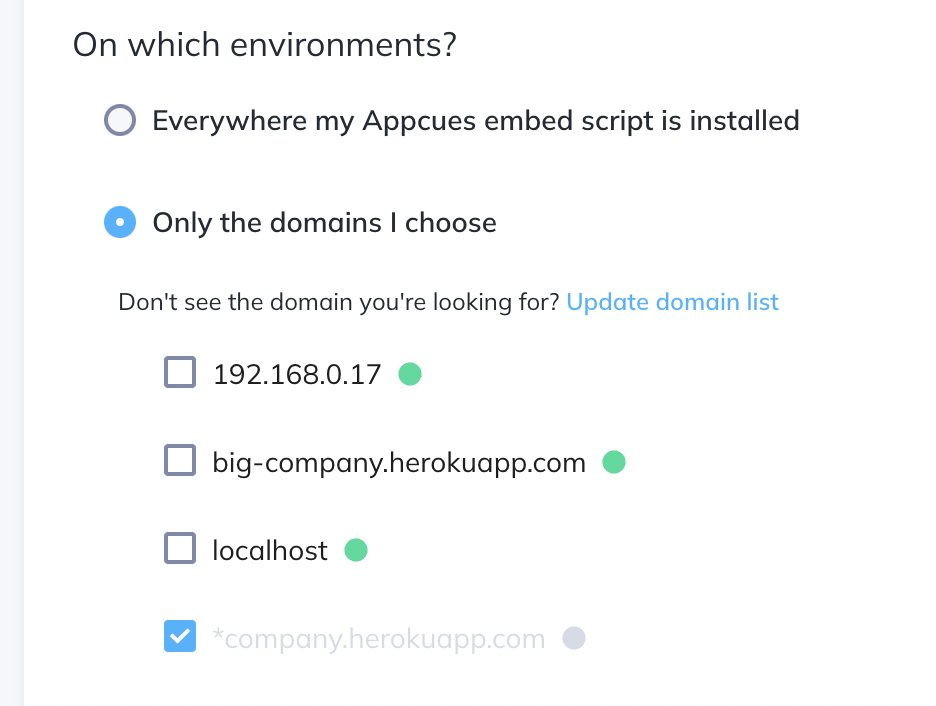
                    4. Open your experience's Settings step and select the wildcard domain under On which environments?.

                    The green installation indicator won't appear next to wildcard domains. This is expected — the wildcard still works.
                    Confirm it worked

                    • Open the Appcues debugger on the target domain and verify that your experience is eligible to appear.
                    • If the experience still doesn't show, check that the domain exactly matches the pattern you entered and that the experience's page targeting and audience rules are also satisfied.

                    If a domain isn't showing in the list

                    • Confirm you saved the domain in Settings > Account > Available Domains.
                    • Check for typos, extra spaces, or casing mismatches.
                    add domains target domains wildcard domains staging production

                    Was this article helpful?

                    Yes
                    No
                    Give feedback about this article

                    Related Articles

                    • Configure Flow Settings
                    • Configure Page Targeting
                    Appcues logo

                    Product

                    Why Appcues How it works Integrations Security Pricing What's new

                    Use cases

                    Appcues Integration Hub User Onboarding Software Feature Adoption Software NPS & Surveys Announcements Insights Mobile Adoption

                    Company

                    About
                    Careers

                    Support

                    Developer Docs Contact

                    Resources

                    The Appcues Blog Product Adoption Academy GoodUX Case studies Webinar Series Made with Appcues

                    Follow us

                    Facebook icon Twitter icon grey Linkedin icon Instagram icon
                    © 2022 Appcues. All rights reserved.
                    Security Terms of Service Privacy Policy

                    Knowledge Base Software powered by Helpjuice

                    Expand