Build a mobile Flow across screens
Use navigation steps to move users to the right screen mid-Flow.
Table of Contents
Give a mobile Flow steps on more than one screen — a product tour or feature walkthrough that follows the user as they move through your app. Navigation steps (also called deep link navigation) send the user to the target screen before the next step shows.
Prerequisites
- Appcues installed in your app with screen tracking. See Installing Appcues in Mobile Applications.
- Deep links configured for the screens you want to navigate to. See Configure Mobile Deep Links.
Steps
- Create a Flow and build your first step. Add content that sets context for the tour.
- Add the step you want to show on the next screen. You'll attach navigation to it in the next step.
- Select the second step, open the Navigation tab in the sidebar, and enter the target screen in the Deep link URL field. An arrow indicator appears on the step to show navigation is set.
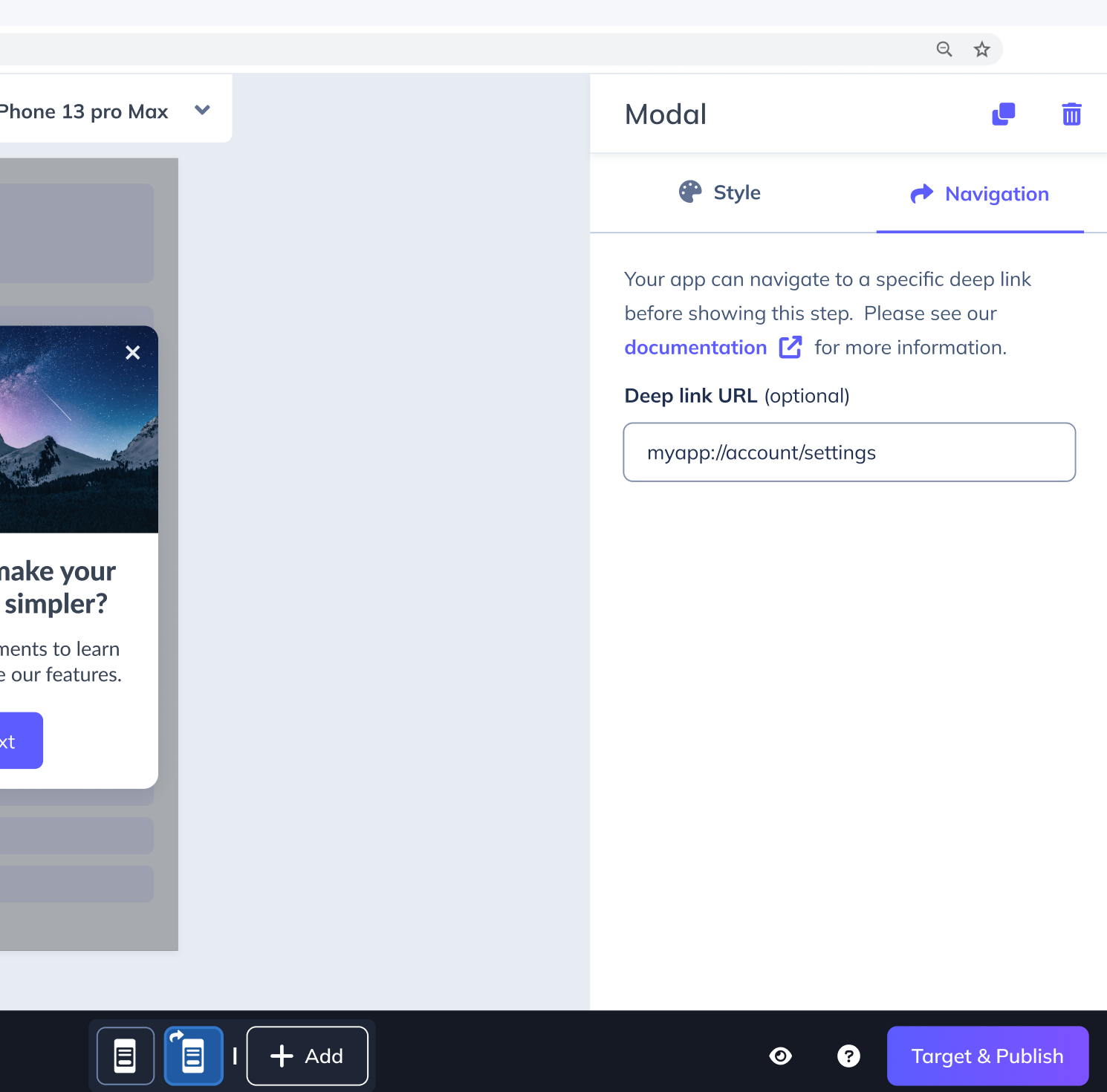
- Click Target & Publish. Set screen targeting to the screen where the Flow should start, restrict the audience to your test users, and publish. For the full walkthrough, see Target and Publish Mobile Flows.
Confirm it worked
- Trigger the Flow on the starting screen as a test user.
- When you advance past the step with navigation set, the app moves to the target screen and the next step appears there.
How navigation behaves
- Navigation is tied to the step group, not the step's position. Reorder or move the group and its navigation setting travels with it.
- Updating the Deep link URL on any step in a group sets navigation for the whole group.
- The user is always taken to the group's target screen before the next step shows — even when they arrive there through a previous-step or custom-step action.
- To remove navigation, open the Navigation tab on any step in the group and clear the Deep link URL field.
If navigation isn't working
- The user doesn't move screens. Confirm the deep link in the Deep link URL field matches a deep link your developers have wired up. Test that deep link directly in the app first.
- Navigation on the first step doesn't fire. Navigation on step one is skipped when the user qualifies through standard targeting (session, event, or screen event). It does fire when the Flow is triggered by a deep link, by a previous- or custom-step action, or in Flow preview.
- Still stuck? Collect the Flow URL from Studio, the affected User ID, the deep link you configured, and a screen recording, then contact support.