Submit Article Requests

Do you have a suggestion for an article you would like to see created?
Feel free to submit this form and add your suggestions to our document board.

Please fill out the contact form below and we will reply as soon as possible.

  • Integration Hub
  • Contact Us
  • Docs home
  • Mobile Experiences
  • Installation & configuration

Configure Mobile Deep Links

Set up URL schemes so preview, screen capture, and Anchored Tooltips work.

Updated at July 14th, 2026

Submit Article Requests

Do you have a suggestion for an article you would like to see created?
Feel free to submit this form and add your suggestions to our document board.

Please fill out the contact form with the details about the help content you'd like to see.

  • Home

  • Getting Started

    • Appcues App

      • Installation & Developers

        • Web Experiences

          • Mobile Experiences

            • Workflows

              • Analytics & Data

                • Account Management

                  • Integrations

                    Table of Contents

                    What deep links enable Configure deep links during SDK install Confirm it's configured Troubleshoot The link gives an error or doesn't launch your app The link launches your app, but nothing happens The debugger status check fails Example debugger screens Still stuck?

                    Deep links let the mobile builder open your app to preview a Flow or capture a screen on your device — usually by scanning a QR code. Configuring them is a required SDK install step that powers preview, screen capture, and Anchored Tooltips.

                    What deep links enable

                    • Preview a Flow in your app directly from the builder.
                    • Screen capture for use in the builder, including Anchored Tooltip placement.

                    Configure deep links during SDK install

                    Deep links use a standard URL scheme based on your App ID, in the form appcues-APPCUES_APPLICATION_ID. The exact setup varies by framework — follow the developer guide for yours:

                    • Native iOS
                    • Native Android
                    • React Native
                    • Expo Managed Workflow
                    • Flutter
                    • Ionic

                    The registered URL scheme must match appcues-[App ID] exactly, where App ID is the UUID used to initialize the SDK (found under Settings > Apps & Installation). For example, if your App ID is 8bbb1933-e746-466e-97b9-c20effd0e7c7, the URL scheme is appcues-8bbb1933-e746-466e-97b9-c20effd0e7c7.

                    Don't use your Account ID (a 5–6 digit number) here. The URL scheme requires the App ID, which is a UUID.

                    Confirm it's configured

                    Use the Appcues debugger to validate deep linking:

                    1. Launch the debugger with a call to appcues.debug(). You can trigger this from a test build at startup or a hidden button in your app.
                    2. Tap the floating button to expand the debugger.
                    3. Tap the Appcues Deep Link Configured row. A checkmark means deep linking is set up correctly.

                    Once configured, you can also open the debugger any time via appcues-APPCUES_APPLICATION_ID://sdk/debugger.

                    Troubleshoot

                    The link gives an error or doesn't launch your app

                    The operating system couldn't find an app registered for the URL scheme. Confirm the scheme appcues-APPCUES_APPLICATION_ID is registered exactly as documented, using the App ID (UUID) — not the Account ID. See the Register the Custom URL Scheme section of your framework's developer guide above.

                    The link launches your app, but nothing happens

                    The scheme is registered, but the URL isn't being passed to the SDK for processing. In your app code, confirm appcues.didHandle(url) is being called. A return value of true means the SDK handled an Appcues deep link (for preview or screen capture); false means it was a different link for your app to handle. See the Handle the Custom URL Scheme section of your developer guide.

                    Also confirm the SDK was initialized with the exact matching App ID, and that the Account ID (integer) and App ID (UUID) weren't accidentally swapped.

                    React Native: Review the React Native linking guidelines for iOS and Android, and confirm deep links are handled on the native side.

                    Flutter: Review the Prerequisites — specifically FlutterDeepLinkingEnabled in Info.plist (iOS) and flutter_deeplinking_enabled in AndroidManifest.xml (Android). See the Flutter example application for a working implementation.

                    The debugger status check fails

                    • Error 1 — the URL scheme isn't registered as expected. See Register the Custom URL Scheme in your developer guide.
                    • Error 2 — the URL scheme is registered, but the SDK didn't receive the link from the app. See Handle the Custom URL Scheme in your developer guide.

                    Example debugger screens

                    These example screens are from the Appcues iOS SDK.

                    The initial view after opening the debugger
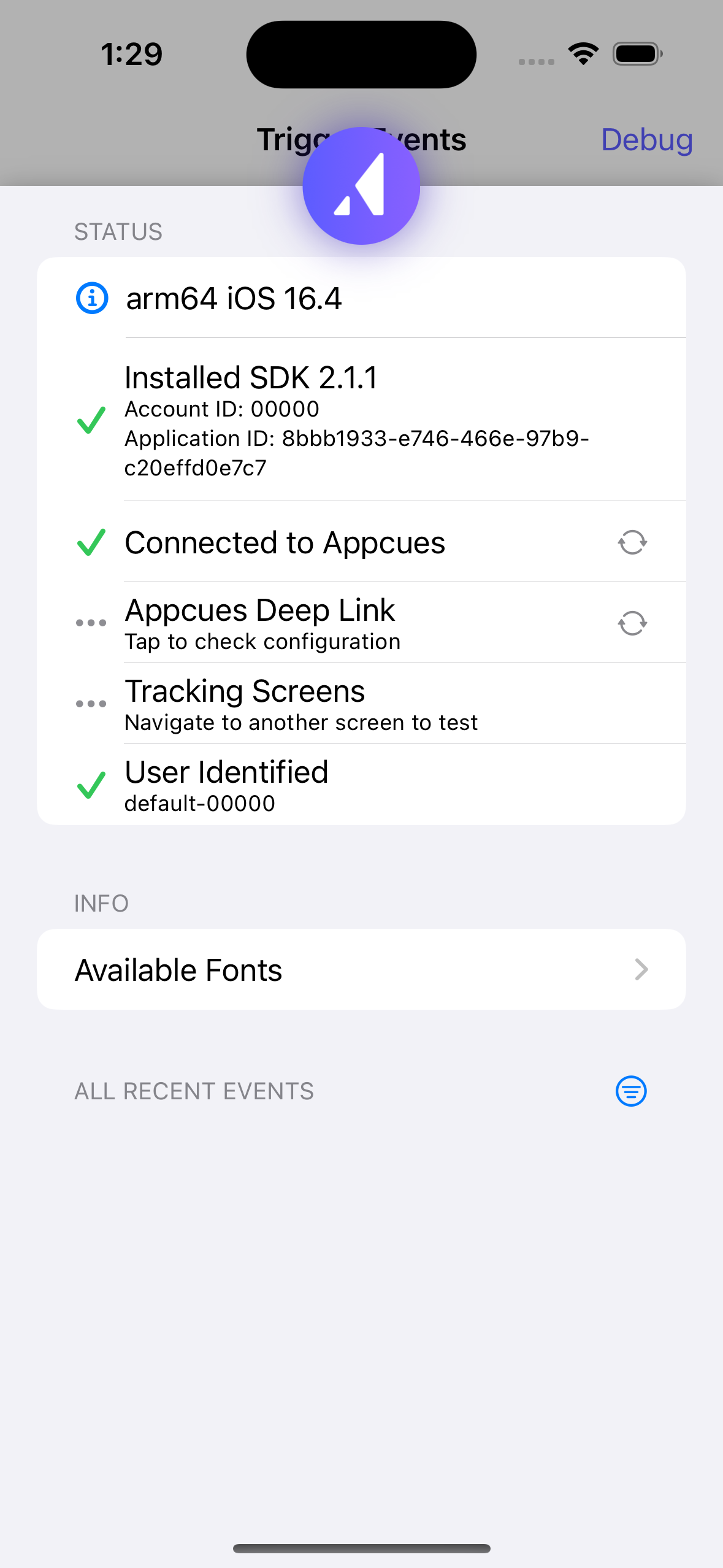
                    The initial view after opening the debugger

                    Example of Error 1
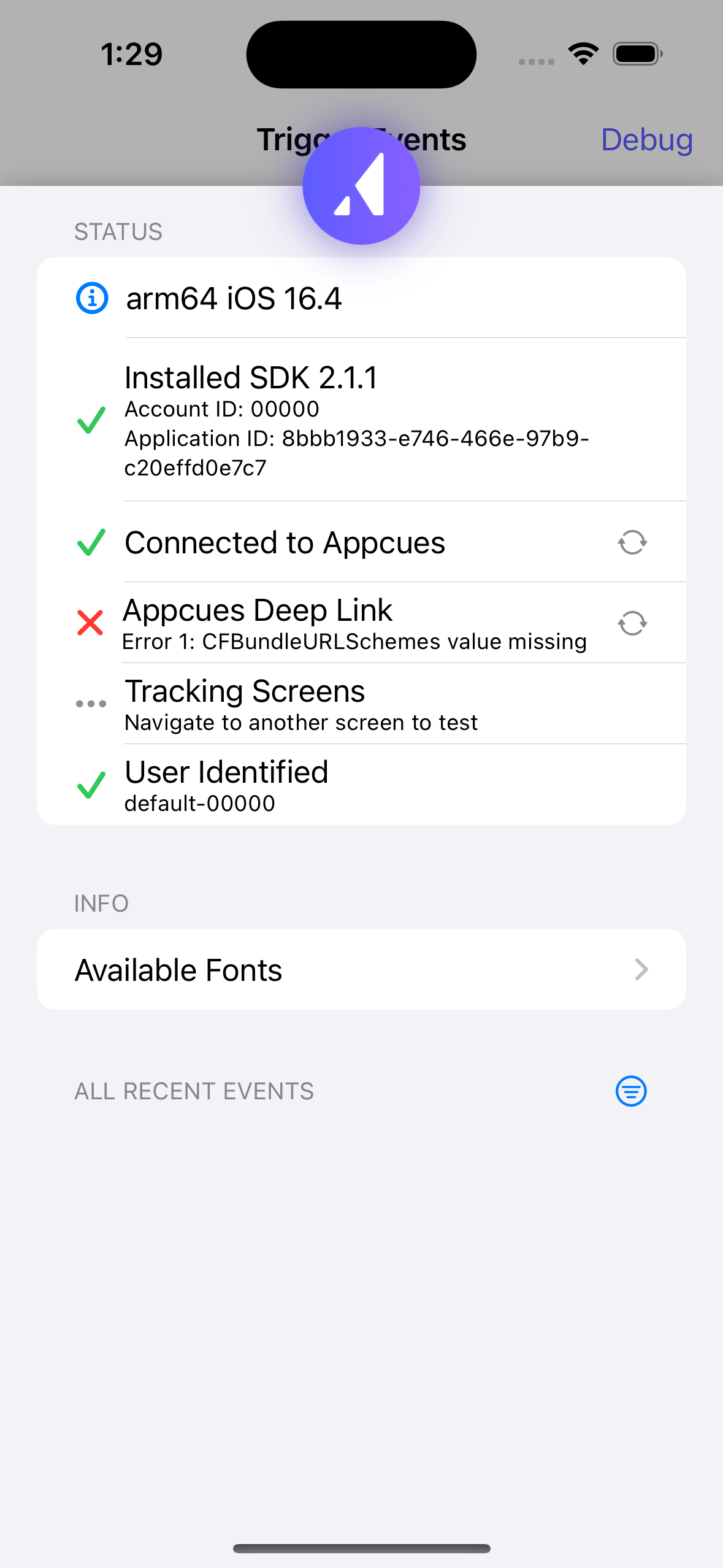
                    Example of Error 1

                    Example of Error 2
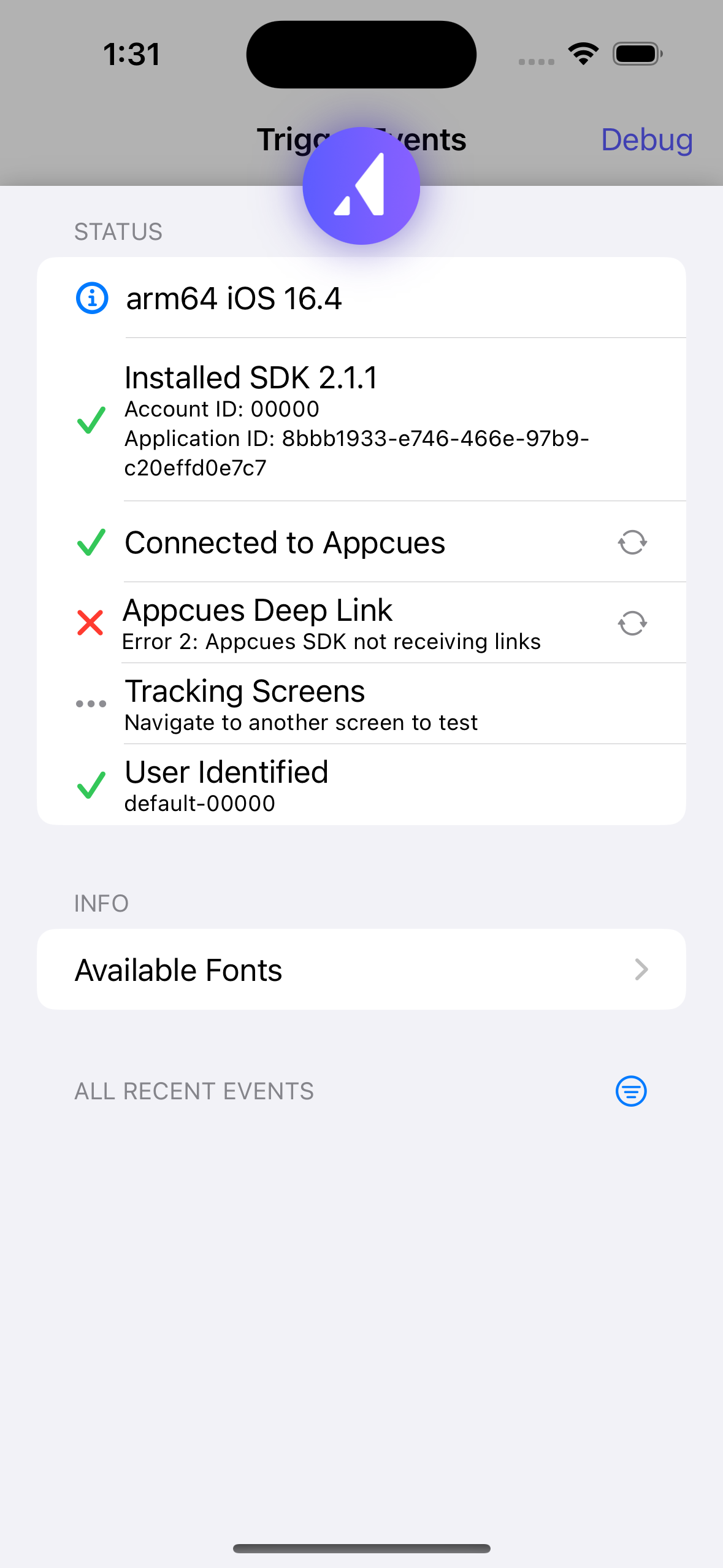
                    Example of Error 2

                    A successful deep link implementation
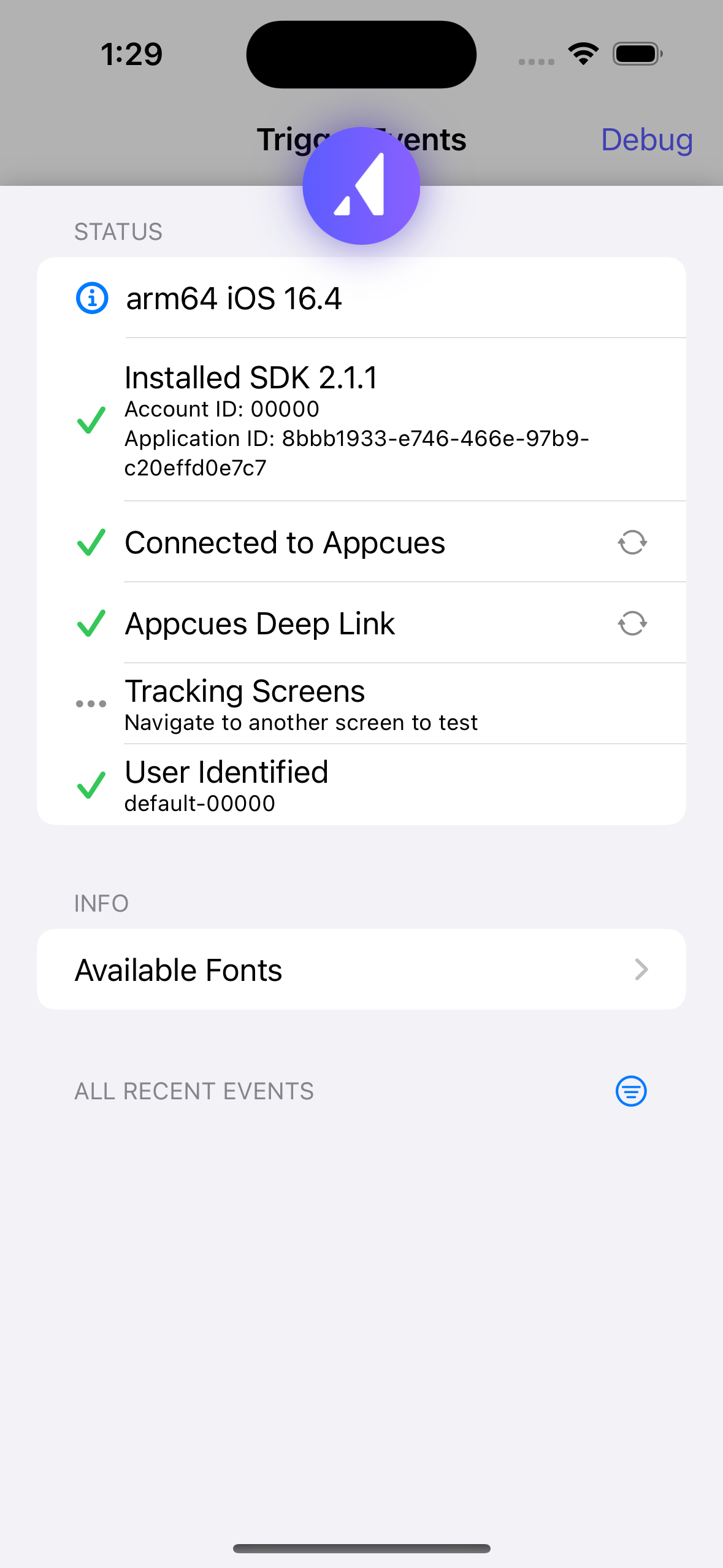
                    A successful deep link implementation

                    Still stuck?

                    Collect the following and contact support:

                    • Your App ID and framework.
                    • A screenshot of the debugger's deep link status.
                    • Any console errors from your app.
                    qr codes mobile builder deep link deep linking mobile deep link

                    Was this article helpful?

                    Yes
                    No
                    Give feedback about this article

                    Related Articles

                    • Mobile experiences overview
                    • Register your Mobile App
                    • Installing Appcues in Mobile Applications
                    • Install Appcues Mobile via Segment Device-Mode Plugin
                    Appcues logo

                    Product

                    Why Appcues How it works Integrations Security Pricing What's new

                    Use cases

                    Appcues Integration Hub User Onboarding Software Feature Adoption Software NPS & Surveys Announcements Insights Mobile Adoption

                    Company

                    About
                    Careers

                    Support

                    Developer Docs Contact

                    Resources

                    The Appcues Blog Product Adoption Academy GoodUX Case studies Webinar Series Made with Appcues

                    Follow us

                    Facebook icon Twitter icon grey Linkedin icon Instagram icon
                    © 2022 Appcues. All rights reserved.
                    Security Terms of Service Privacy Policy

                    Knowledge Base Software powered by Helpjuice

                    Expand