Localize Flows
Translate a single Flow into multiple languages — define your supported languages, export content for translation, and upload the translated files.
Table of Contents
This article covers only web Flow localization. For other experience types, see Localize Web Experiences and Localize mobile experiences.
How localization works
- Define the languages you support (once, at the account level).
- Build and test your Flow in the original language.
- Export the Flow content as CSV or JSON files.
- Translate the third column of each file.
- Upload the translated files and publish.
Appcues matches users to the correct translation based on the targeting criteria you set for each language (browser language or a custom property). Users whose language isn't in your list see the original authored language.
Define languages
- Go to Settings > Localization tab.
- Click Add language and type the language name (for example, "German").
- Select the targeting criteria to identify users of that language. Options:
- Last Browser Language — Appcues automatically tracks this. Recommended for most setups.
-
Custom property — use any property sent via your installation (for example,
preferred_language).
Repeat for each language you support.
Browser language codes can be broad (FR for French) or specific (FR-CA for French Canadian). Appcues matches the exact code set by the browser, so add all relevant variations. If you need separate translations for regional variants (for example, different French for France vs. Canada), add them as separate lines.
Users with languages not on this list see the Flow in the original authored language.

Export content for translation
Open the Flow's settings page and find the Localization section.
Click Download all translations. Appcues downloads a ZIP file containing one CSV (or JSON) file per language.
The CSV has three columns:
| Column 1 | Column 2 | Column 3 |
|---|---|---|
| Content ID (don't edit) | Original text (don't edit) | Translation (enter here) |
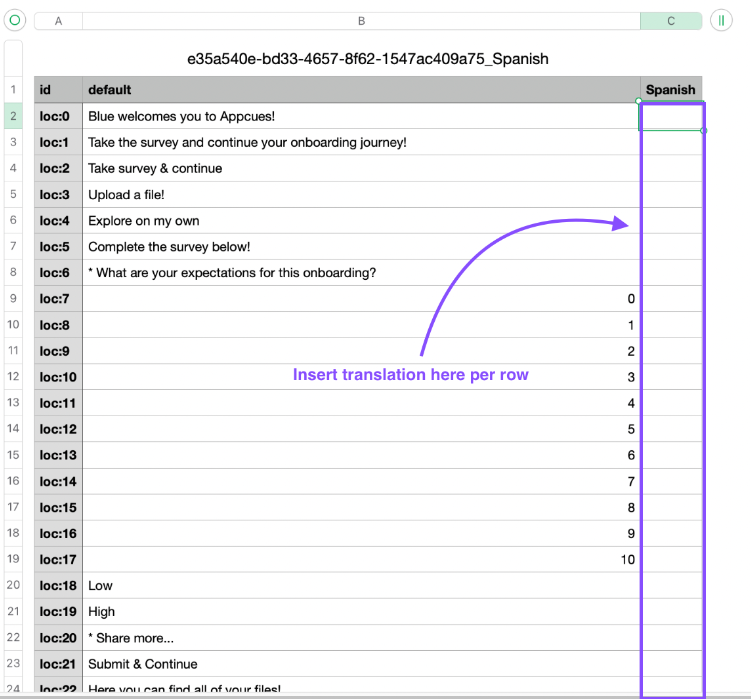
Translate the files
- Open each language file in a spreadsheet editor (Google Sheets, LibreOffice, or Apple Numbers recommended).
- Translate the text in column 3 only. Leave columns 1 and 2 unchanged.
- Fill in every row — Appcues rejects files with empty translation rows.
- Save as CSV using UTF-8 encoding.
If you use Microsoft Excel, you may need extra steps to import and export with UTF-8 encoding. See Translate Flows in Microsoft Excel.
Some spreadsheet programs offer an option to include table names in the CSV export. Leave this unselected.
Styled text and line breaks
If you applied styling (bold, italic, etc.) to a single line of text, Appcues may break that text across multiple rows in the CSV to preserve the formatting. Include the same spacing in your translated rows to maintain correct rendering.
Upload translations and publish
- On the Flow's settings page under Localization, upload each translated file to the corresponding language.
- Click View next to any uploaded translation to preview it in the Builder.
- Click Publish when all translations are ready.
Edit a localized Flow
You can't edit a Flow's content while translations are applied. To make changes:
- Unpublish the Flow (if live).
- Click Remove translations on the settings page.
- Edit the Flow content as needed.
- Re-export, re-translate, and re-upload the files.
- Republish.
Minimize downtime: Clone the Flow, keep the old version live, localize the clone, then publish the clone and unpublish the original.

Right-to-left (RTL) language support
For languages like Arabic, Hebrew, or Persian, add the following CSS to your Theme's CSS section to flip text direction, button placement, and navigation arrows:
appcues cue, .appcues-actions, .tooltip .panel-content, .tooltip .panel-content-actions {
    direction: rtl;
    text-align: initial;
}

.appcues-actions .appcues-actions-left, .tooltip .panel-content-actions .appcues-actions-left {
    text-align: right;
    float: none;
}

.appcues-actions .appcues-actions-right, .tooltip .panel-content-actions .appcues-actions-right {
    text-align: left;
    float: none;
}

.tooltip .panel-content-actions .appcues-actions-right, .tooltip .panel-content-actions .appcues-actions-left {
    padding-left: 5px;
    padding-right: 5px;
}

appcues cue .appcues-actions-right .appcues-button[data-step=next]:after, appcues cue .step-action-buttons .appcues-actions-right .appcues-button[data-step=next]:after {
    left: 0;
    right: initial;
    border-right: 1px solid #fff;
    border-left: none;
}

appcues cue .appcues-actions-left .appcues-button[data-step=prev]:before, appcues cue .step-action-buttons .appcues-actions-left .appcues-button[data-step=prev]:before {
    right: 0;
    left: initial;
    border-left: 1px solid #fff;
    border-right: none;
}

appcues cue .appcues-actions-right .appcues-button[data-step=next], appcues cue .step-action-buttons .appcues-actions-right .appcues-button[data-step=next] {
    padding-left: 45px;
    padding-right: 18px;
}

appcues cue .appcues-actions-left .appcues-button[data-step=prev], appcues cue .step-action-buttons .appcues-actions-left .appcues-button[data-step=prev] {
    padding-right: 45px;
    padding-left: 18px;
}
Need help applying this CSS? Contact support@appcues.com.
Edit translation files in Excel
Flows 1.0 uses CSV files for localization instead of XLIFF. If you manage these files in Microsoft Excel, follow these steps to preserve UTF-8 encoding.
Import a translation CSV into Excel
- In Excel, go to Data > From Text/CSV.
- Select the translation file.
- Change File Origin to 65001: Unicode (UTF-8).
- Set the Delimiter to Comma if it isn't already.
- Click Transform Data.
- In the new window, click Use First Row as Headers, then Close & Load.
Export a translation CSV from Excel
- Go to File > Export > Change File Type.
- Select CSV (Comma delimited) and click Save As.
- Under Save as type, change the dropdown to CSV UTF-8 (Comma delimited).
- Save the file. You can now upload it to Appcues.
Google Sheets, Apple Numbers, and LibreOffice handle UTF-8 CSV files automatically — these steps are only necessary for Microsoft Excel.
Confirm it worked
- Preview each language translation from the settings page using the View button.
- Publish to a staging environment or restrict to internal testers, then test with a browser set to each target language.
- Verify that users whose language isn't in your list see the original language.
Common questions
Why is the Localization section disabled on my settings page?
The Flow is currently published. Unpublish it first to access the localization settings.
What if a user qualifies for more than one translation?
Appcues shows the most recently created language grouping. More recently created groupings appear at the bottom of the list in the localization settings.
Do you support translation of "Next" and other built-in buttons?
Custom button text is included in the export file and can be translated. Built-in system labels may require custom CSS.
Can I delete or change a language in my account settings if it's being used in a Flow?
Not while the Flow is published. Unpublish all Flows using that language first, then modify the language in your settings.
Can I localize Flow titles in a Launchpad?
Yes. Click the Localize display name button in the Localization panel on the Flow settings page. Add your translation in the panel and save.
Can I localize Checklists?
Checklist localization is not supported at this time.
Do I have to unpublish Flows to localize them?
Yes. To minimize downtime, clone the Flow, localize the clone, then publish the clone and unpublish the original.
Does Appcues support right-to-left languages?
Appcues does not currently support RTL styling. Content in RTL languages (Hebrew, Arabic, etc.) displays left-to-right like all other content.
What languages does Appcues support?
Appcues supports any language through the CSV/JSON translation workflow. The localization system uses UTF-8 encoding, which covers all major character sets.
Supported Languages
|
|
|