US English (US)
ES Spanish

Submit Article Requests

Do you have a suggestion for an article you would like to see created?
Feel free to submit this form and add your suggestions to our document board.

Please fill out the contact form below and we will reply as soon as possible.

  • Integration Hub
  • Contact Us
English (US)
US English (US)
ES Spanish
  • Docs home
  • Web Experiences
  • Flows

Targeting use cases and examples

Learn some targeting use cases to define when your flows should show to your users.

Updated at March 23rd, 2026

Submit Article Requests

Do you have a suggestion for an article you would like to see created?
Feel free to submit this form and add your suggestions to our document board.

Please fill out the contact form with the details about the help content you'd like to see.

  • Home

  • Getting Started

    • Installation & Developers

      • Web Experiences

        • Mobile Experiences

          • Workflows

            • Analytics & Data

              • Account Management

                • Best Practices

                  • Integrations

                    Table of Contents

                    Show Flows in a specific order Show a Flow a set number of times Show a Flow on a recurring schedule Space time between multiple Flows Show a Flow until the user completes it Show a Flow after an event Show a Flow during a specific window after signup Step completion reference

                    Common audience targeting recipes for Flows — show Flows sequentially, on an interval, a set number of times, after events, and until completed.

                    These examples use audience targeting conditions on the Flow settings page. For the basics of how targeting works, see Configure Flow settings. For a deeper dive into audience conditions, see Audience targeting.

                    Show Flows in a specific order

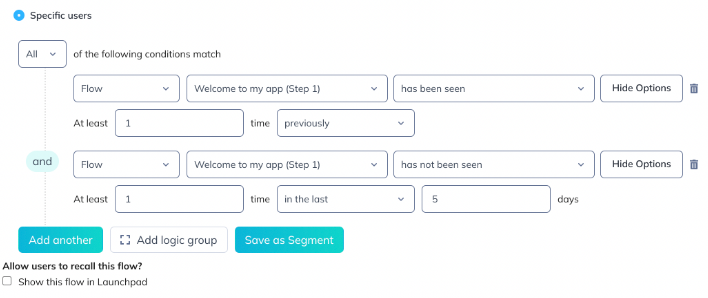
                    Show a "Welcome" Flow first, then an "Add Tasks" Flow 5 days later.

                    On the Add Tasks Flow, add these audience conditions:

                    • Flow "Welcome" → has been seen
                    • Flow "Welcome" → has not been seen in the last 5 days

                    This ensures the user saw the Welcome Flow at least 5 days ago before qualifying for the next one.
                    Show a Flow a set number of times

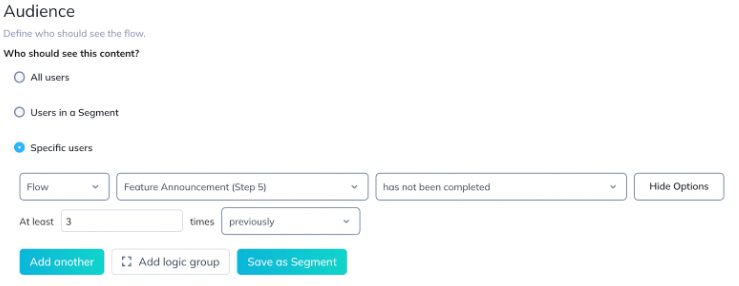
                    Show a Flow exactly 3 times, then stop.

                    1. Set frequency to Show every time.
                    2. Add an audience condition: Flow "[this Flow]" → has been seen fewer than 3 times.

                    Once the user has seen it 3 times, they no longer qualify.
                    Show a Flow on a recurring schedule

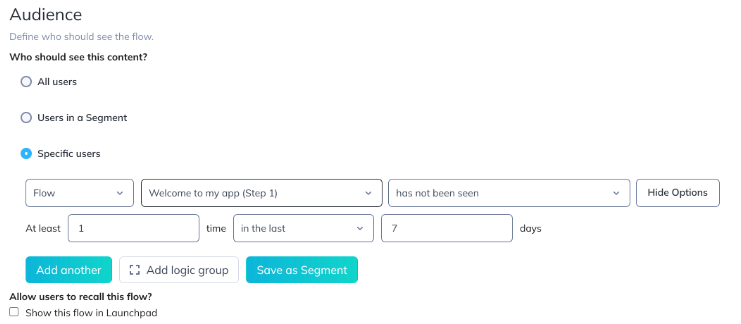
                    Show the same Flow once every 7 days.

                    1. Set frequency to Show every time.
                    2. Add an audience condition: Flow "[this Flow]" → has not been seen in the last 7 days.

                    After 7 days pass since the user last saw the Flow, they qualify again.
                    Space time between multiple Flows

                    Prevent users from seeing too many Flows in a short period.

                    On each subsequent Flow, add an audience condition: Flow "[previous Flow]" → has not been seen in the last X days.

                    This creates a buffer between Flows regardless of frequency settings. You can also use the global Experiences frequency limit to cap all Flows account-wide.

                    Show a Flow until the user completes it

                    Keep showing a Flow on every visit until the user finishes all steps.

                    1. Set frequency to Show every time.
                    2. Add an audience condition: Flow "[this Flow]" → last step has not been completed.

                    The Flow reappears on every qualifying page view until the user completes the final step.

                    This works reliably for Flows that start with Tooltips or Hotspots, where completion requires interaction. For Flows starting with Modals or Slideouts, "seen" and "completed" are effectively the same — the step counts as complete the moment it renders.

                    Show a Flow after an event

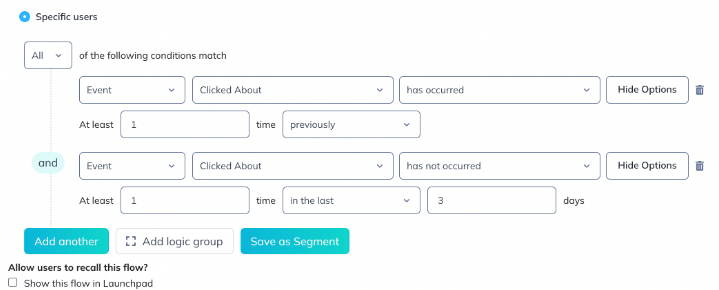
                    Show a Flow 3 or more days after a specific event occurred.

                    Add these audience conditions:

                    • Event "Purchase" → has occurred at least 1 time
                    • Event "Purchase" → has not occurred in the last 3 days

                    This targets users who triggered the event at some point in the past but not recently — creating a delay between the event and the Flow.
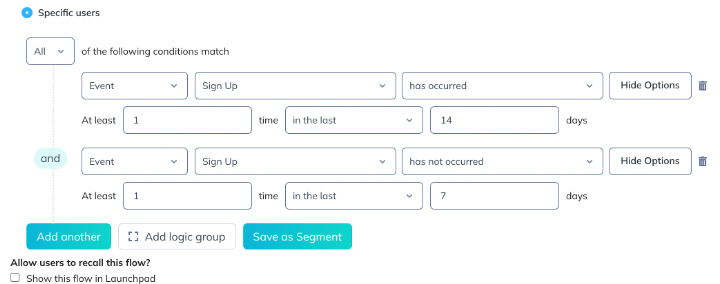
                    Show a Flow during a specific window after signup

                    Show a Flow only during the second week after a user signs up.

                    Add these audience conditions:

                    • Event "Sign up" → has occurred in the last 14 days
                    • Event "Sign up" → has not occurred in the last 7 days

                    This creates a window: users who signed up between 7 and 14 days ago qualify.
                    Step completion reference

                    When building targeting conditions, remember that different patterns track completion differently:

                    Pattern Condition in UI Triggered by
                    Modals, Slideouts "has been seen" Step renders on screen
                    Tooltips, Hotspots "has been completed" User interacts with the step

                    For more on completion tracking, see Flows overview.

                    targeting flows targeting use cases flow targeting show a flow after another flow show a flow x times show a flow every x days show a flow on an interval show a flow more than once

                    Was this article helpful?

                    Yes
                    No
                    Give feedback about this article

                    Related Articles

                    • Audience Targeting
                    • Targeting Use Cases and Corner Cases
                    • Target Appcues Flows Based on Form Responses
                    Appcues logo

                    Product

                    Why Appcues How it works Integrations Security Pricing What's new

                    Use cases

                    Appcues Integration Hub User Onboarding Software Feature Adoption Software NPS & Surveys Announcements Insights Mobile Adoption

                    Company

                    About
                    Careers

                    Support

                    Developer Docs Contact

                    Resources

                    The Appcues Blog Product Adoption Academy GoodUX Case studies Webinar Series Made with Appcues

                    Follow us

                    Facebook icon Twitter icon grey Linkedin icon Instagram icon
                    © 2022 Appcues. All rights reserved.
                    Security Terms of Service Privacy Policy

                    Knowledge Base Software powered by Helpjuice

                    Expand