Manage Your Account & Team
Find guidance to help you manage your Appcues account and team.
Table of Contents
Need to manage the members of your Appcues team? We've got you covered! You can add, remove, and set permissions on the Teams tab in your studio.appcues.com dashboard.
From Studio, select Settings > Teams.

User Types and Permissions
Here's a handy list of the permission levels in Appcues:
Administrator
Can:
- Full access to all features and account settings
- Create, edit, publish and archive experiences
- Invite, remove, and manage team members and their roles
- Configure SSO settings
- Change billing/plan
- Change AI settings
- Emails: add senders, manage suppression lists and sending behavior
- Change account/user identifier
- Manage integrations
- Create and disable API keys
- Create, disable and delete Webhooks
Publisher
Can:
- Create, edit, publish and archive experiences
- Turn on/off and set account frequency limit
- Create, edit and delete Segments, Goals, Themes and Saved Charts
- Create, pause and end Experiments
- Add, delete and manage Folders
- Create, disable and archive CTT events
- Add email senders
- Add and remove localization languages
Cannot:
- Invite new teammates or manage team membership
- Change billing/plan
- Change AI settings
- Emails: manage suppression lists and sending behavior
- Change account/user identifier
- Manage integrations
- Create, disable and delete Webhooks
- Create and disable API keys
Editor
Can:
- Create and edit Experiences
- Create, edit and archive Click-to-Track events
- Create and delete Saved Charts
- Add, delete and manage Folders
- Turn on/off and set account Frequency Limit
- Add email senders
- Add localization languages
- was able to remove an active integration and activate another
Cannot:
- Publish or archive experiences
- Invite new teammates or manage team membership
- Change billing/plan
- Create, edit and delete Segments, Goals, Themes
- Create, pause and end Experiments
- Change AI settings
- Emails: manage suppression lists and sending behavior
- Change account/user identifier
- Manage integrations
- Create, disable and delete Webhooks
- Create and disable API keys
- Remove localization languages
Invite Teammates
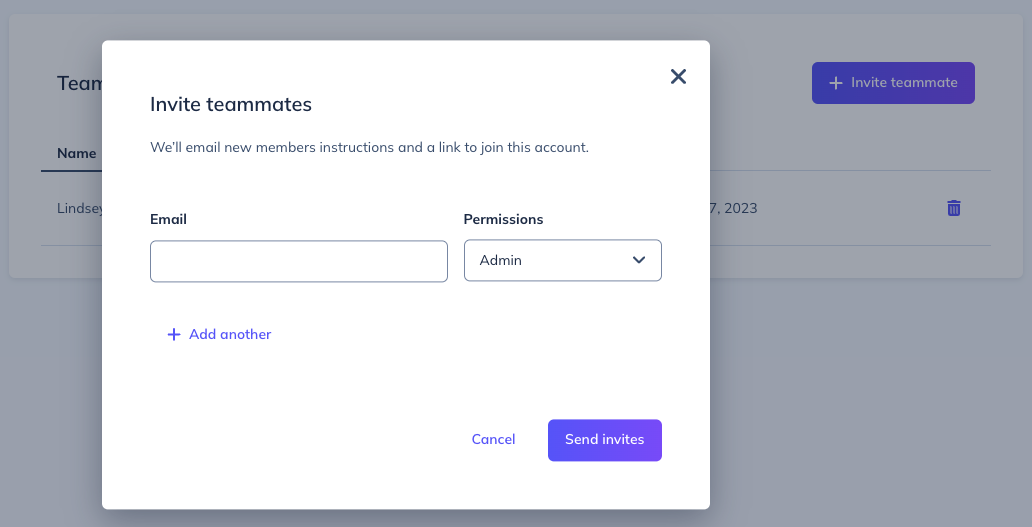
Invite additional team members to your Appcues account from the "Teams" page in settings. Note: Only Administrator-level users can add teammates.

Fill out the form to send an invitation email to the new teammate. You can also use the “Add another” button to invite multiple teammates at once. Once they accept the invitation they will be added to your team.
Join an account
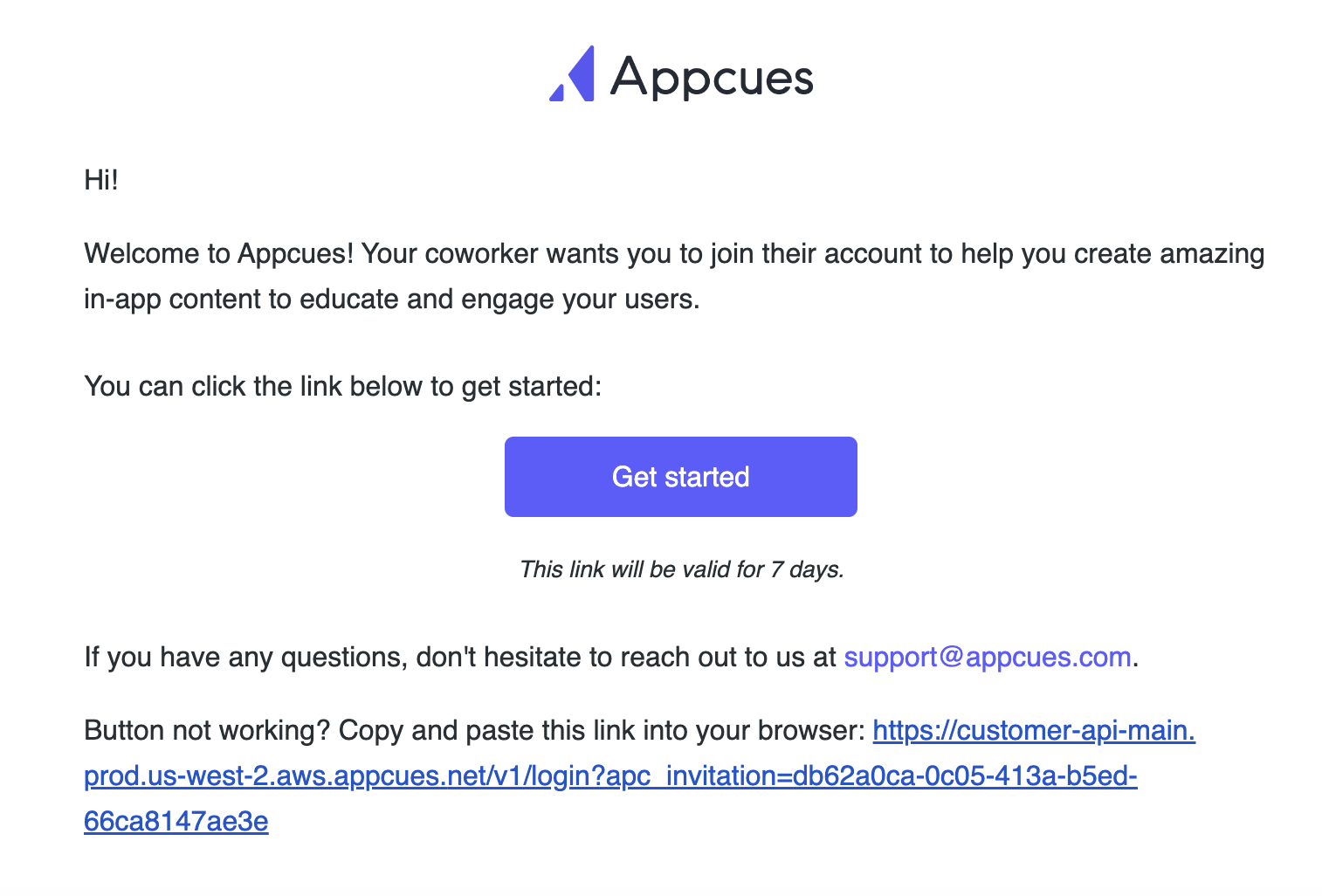
After filling out the form, an invitation email will be sent to the new teammate. The new teammate needs to follow the Get Started button or use the provided link.
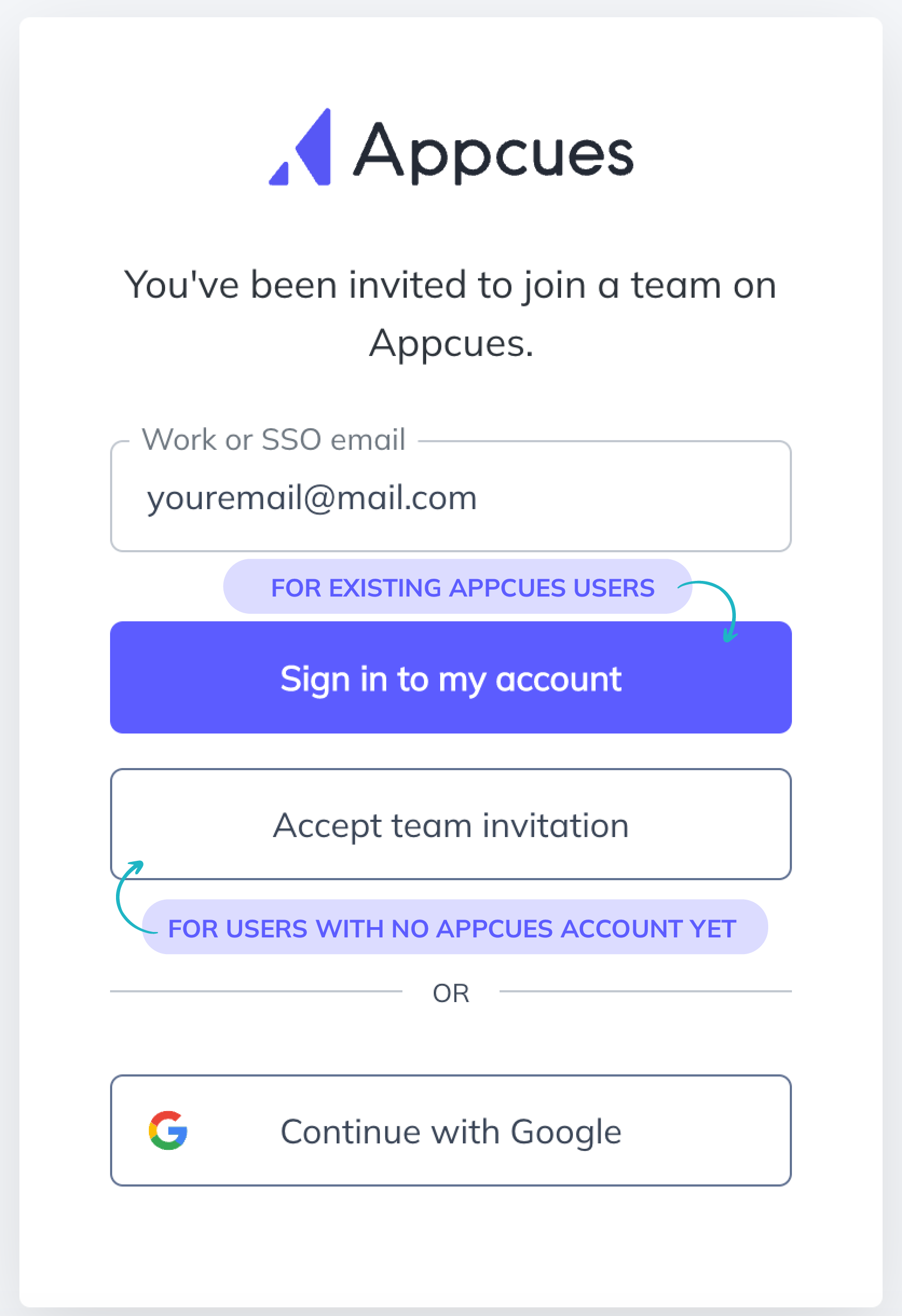
The new teammate will be prompted with the below form. There are two options:
- If the new teammate already has another Appcues account, they'll need to follow the button Sign in to my account. This will take them to the new account using their existing signup with Appcues.
- If the new teammate has no other Appcues account, they'll need to follow the button Accept team invitation.
View and Manage Invitations
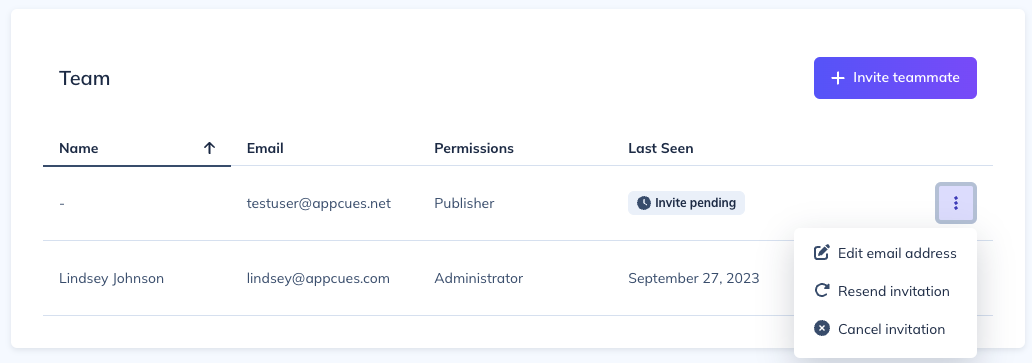
For any pending invitations that have not yet been accepted, you can view the status of that invite directly within the table. You can see whether the invite is still pending, or if it has expired. Once an invited user accepts their invitation, you will see them as an active user within this table.
In addition to viewing the status of the invitation, administrators will see an ellipses icon (three dots) next to the invited user record. From here, you have three options:
- Click ‘Edit email address’ to change the email recipient for that invitation. This effectively cancels the pending invitation, and sends a new invite to the updated email address.
- Click ‘Resend invitation’ to regenerate the invitation for that user, in case their invite has expired.
- Click ‘Cancel invitation’ to ensure this invitation is not able to be redeemed.
Remove Teammates
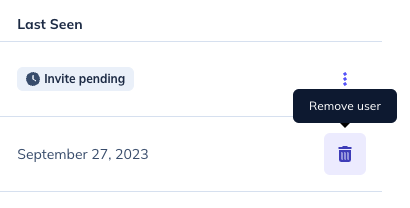
Administrators will see an ellipses icon (three dots) next to the name of their colleagues that have joined their account. Click the trash can icon, or 'Remove User,' to immediately terminate access to your Appcues account for that team member.
Switch between accounts
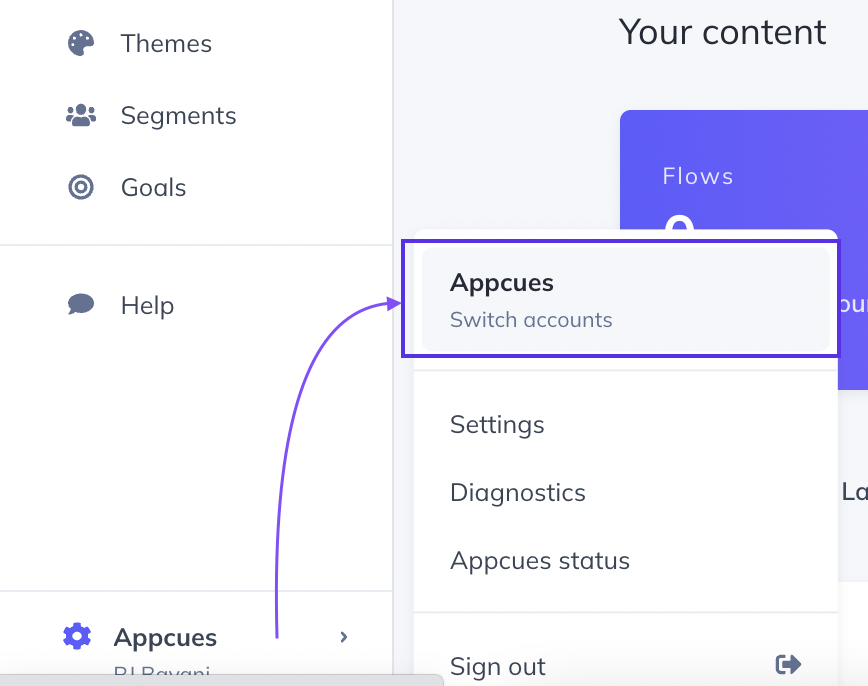
If you have been added to multiple accounts, you can switch between them here:
Add another Appcues account
If you work on another product and you'd like to set up a second Appcues account, reach out to support@appcues.com and we'd be happy to help!
Modify Your Email
To modify the email address you're working on, you'll need to add the new email address using the Invite Teammates steps above. Then use the link included in the autogenerated email to gain access to the company Appcues account with your new email address.
After joining with the new email address, feel free to remove your previous email address.
Password Help
Forgot your password?
If you've forgotten your password, you can send yourself a new one here.
Alternatively, you can click the "forgot password" button at the bottom of the login page.
Have access but want to change your password?
To update your password:
- Log in to Appcues using your current password (or the one auto-emailed to you)
- Navigate over to the Account section in Settings
- Click Reset your password in the Profile section under job section
- Click the purple reset button to have a reset email sent to you
Still have questions or suggestions about managing your Appcues account? We'd love to hear from you at support@appcues.com!