Troubleshoot NPS
Diagnose and fix common issues with NPS surveys not appearing, low response rates, Flows blocking the survey, and sampling or frequency mismatches.
Table of Contents
NPS survey isn't appearing
Work through these checks in order. Most issues are caught in the first three steps.
Check that Appcues is installed
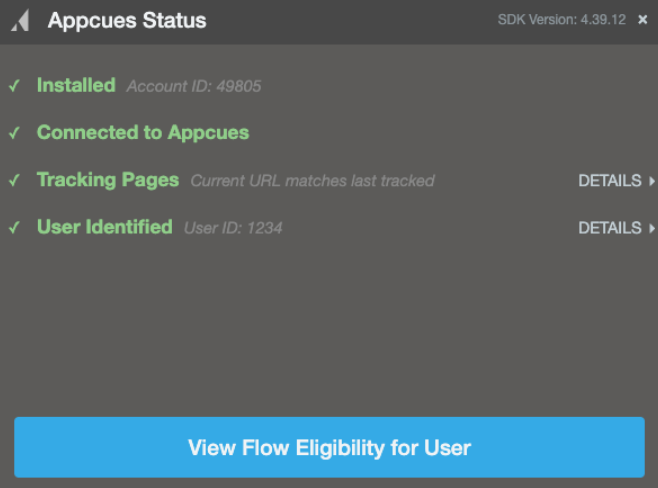
Open the Appcues debugger on the page where you expect the NPS survey to show. Confirm all rows display green checkmarks.
If any rows show red errors, you have an installation issue that needs to be resolved before the survey can appear. See Installation Testing / Debugging for next steps.
Check user eligibility
Use the eligibility test tool on your NPS survey settings page:
- Open the NPS survey's settings page in Studio.
- In the Audience targeting section, click Check eligibility.
- Enter the user ID you want to verify and click validate. The tool reports whether the user matches your audience conditions.
Check page targeting
Use the Test Page Targeting tool on your NPS survey's settings page.
- Open your NPS survey's settings page in Studio.
- Enter the URL where you expect the survey to appear.
- The tool reports whether the URL matches your page and domain conditions.
If the result says "won't show", review your URL conditions. Common mistakes are covered in the Page targeting isn't matching section below.
Check frequency settings
NPS surveys have their own frequency cycle. If the user has already completed the survey within the current cycle, they won't see it again until the cycle resets.
Using legacy NPS (v1)?
You can also override the global frequency limit on the NPS survey's settings page if a strict account-wide limit is blocking the survey from appearing.
Flows are blocking the NPS survey
NPS surveys only display when no other Flows are eligible to show to the user on that page. If a Flow targets the same page and the user qualifies for it, the Flow takes priority and the NPS survey won't appear.
Common scenarios where this happens:
- A Flow targeting the same page is set to Show every time to All users — this blocks the NPS survey permanently for those users on that page.
- Multiple Flows compete for the same page, and the NPS survey never gets a turn in the priority queue.
To fix:
- Narrow the Flow's audience or page targeting so it doesn't overlap with the NPS survey's target page.
- Adjust the page where your NPS survey displays to one with less Flow traffic.
- Increase the NPS survey's priority weight so it takes precedence over competing Flows. See Flow Priorities.
For testing, temporarily set the NPS sampling rate to 100% to eliminate sampling as a variable. This ensures every eligible user sees the survey on their next qualifying page view. Lower the rate before going live.
Using legacy NPS (v1)?
In v1, Flows always take priority over NPS — there is no weight-based priority setting. The survey only shows when no other qualified Flow is pending for the user. If Flows consistently block your NPS survey, narrow the Flows' targeting or move the NPS survey to a different page.
Low or no responses
The survey is live but response volume is lower than expected.
Sampling rate is too low
A low sampling percentage means only a fraction of eligible users see the survey on any given day. This is by design — it spreads responses across the cycle — but if your eligible user base is small, a 5% rate may produce very few responses.
Check the sampling percentage on your survey's settings page. For smaller user bases, increase sampling to 50–100%. For larger user bases, 5–20% is typical.
Minimum page views threshold is too high
If minimum page views is set high (for example, 10), users who only visit a few pages per session will never see the survey.
Lower the threshold or set it to 0 for testing. See Create an NPS survey for guidance on choosing the right value.
Users are dismissing the survey
If users click Ask me later, the survey won't reappear until the snooze or cycle period passes. You can check dismissal activity by checking a User profile > Activity tab and looking for NPS Ask Me Later events.
User properties are stale or missing
If you're targeting based on a user property that is no longer being sent — or is being sent with incorrect values — users won't match the audience criteria.
Check the Properties page in Studio. Find the property you're targeting and check the Last received timestamp. If the property hasn't been received recently, work with your development team to confirm it's still being sent in the Appcues.identify() call.
Page targeting isn't matching
Regex patterns
If using a regex pattern for URL matching, confirm:
- The operator is set to matches regex (not "contains" or "is").
- The pattern is valid. Test it with a regex tester.
AND vs OR conditions
If using multiple URL conditions, check whether they use All (AND) or Any (OR) logic.
Example of a common mistake: You want the NPS survey to appear on pages containing "account", "dashboard", or "payments." If you use All (AND), the survey only appears on a URL that contains all three words simultaneously (e.g., https://yourapp.com/account/dashboard/payments) — which may not exist.
Switch to Any (OR) so the survey appears on any page containing at least one of those words.
Content Security Policy blocking Appcues
Some applications use a Content Security Policy (CSP) that blocks external resources not explicitly allowed. This can prevent the Appcues SDK or Builder from loading.
- Open your browser's console (right-click > Inspect > Console tab) and look for errors that mention a Content Security Policy related to Appcues.
- If you see CSP errors, your development team needs to add Appcues domains to the allow list. See Content Security Policies for the required configuration.
Still stuck?
Collect the following and contact support:
- The NPS survey URL from Studio (copy from your browser's address bar on the survey's settings page).
- The affected user's User ID.
- The page URL where the issue occurs.
- Whether the user has seen other Flows on the same page recently.
- A screenshot or screen recording showing the problem.
- Any console errors visible in the browser's developer tools.