Preview and Test Flows
Verify your Flow looks right, targets the right users, and behaves as expected before releasing it — using Preview, Test mode, staging, or restrictive publishing.
Table of Contents
This article covers web Flows. For mobile, see the mobile documentation.
Choose a testing method
| Method | Best for | Tests targeting? | Tests analytics? | Requires Appcues install? |
|---|---|---|---|---|
| Preview | Quick visual check while building | No | No | Builder only |
| Test mode | Sharing with teammates for review | No (bypassed) | No (excluded) | Yes |
| Publish to staging | Full integration test | Yes | Yes | Yes (on staging) |
| Publish to internal testers | Live production test, limited audience | Yes | Yes | Yes |
Preview in the Builder
Preview mode renders the Flow on the page so you can walk through it as a user would.
- Open the Flow in the Appcues Builder.
- Click the Preview button (eye icon) in the toolbar.
- Step through the Flow. Interact with Tooltips, expand Hotspots, and test form fields.
What Preview does not test:
- Targeting rules (page, audience, frequency)
- User property personalization (variables won't populate)
- Linked Flows (only the current Flow is shown)
- Theme adjustments may not always render fully
Preview is a visual check only. For a real test, use one of the methods below.
Test mode
Test mode lets teammates review a Flow in a live environment without an Appcues account or the Builder installed.
- Open the Flow's settings page in Studio.
- Click Test. A modal appears with a shareable link.
- Copy and share the link with teammates.
Anyone with the link can view the Flow — no Appcues account required. If the page is behind a login, they need credentials to your product but not to Appcues.

What Test mode bypasses:
- Audience targeting, frequency, and trigger rules are ignored — the Flow shows every time the link is used.
- Analytics are excluded — Test mode views don't appear in Flow performance numbers, and form submissions during testing aren't recorded.
What Test mode does not test:
- Linked Flow sequences (only the single Flow is shown)
- User property personalization
Change the Test mode starting page
The test link defaults to the Flow's Build URL. To start the test on a different page, edit the URL in the test link before sharing — replace the domain and path while keeping the ?appcues_test=true parameter.
Publish to a staging environment
Publishing to staging is the most thorough test. It validates targeting, frequency, user properties, and how multiple Flows interact.
- Go to Settings > Available Domains and add your staging domain. You need admin access.
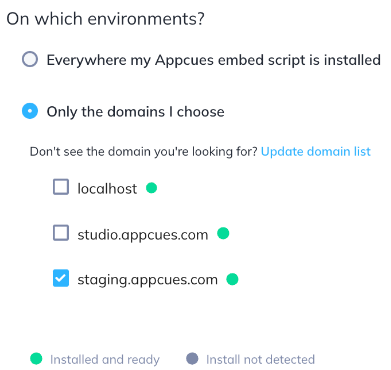
- Open the Flow's settings page and set Page targeting to your staging domain.
- Click Publish. The Flow goes live only on your staging domain — production users won't see it.
What you can test:
- User property and event-based targeting
- Frequency rules (Show once behavior)
- Multiple Flows interacting on the same page
- Linked Flow sequences
Publish to internal testers
If you don't have a staging environment, publish to production but restrict the audience to your team.
Target a segment of testers
- Create a segment that matches your internal testers — for example, Email contains
@yourcompany.com. - On the Flow's settings page, set Audience to Users in a segment and select your tester segment.
- Publish. Only matching users see the Flow.

Target yourself only
- On the Flow's settings page, set Audience to Specific users.
- Add a condition: User ID is
[your User ID]. - Publish. Only you see the Flow.
- Find your User ID by opening the Appcues debugger on any page where Appcues is installed.
Reset the user for repeated testing
If a Flow is set to Show once and you've already seen it, you need to reset your history to test it again.
Reset Flow history only
This clears the "seen" status for all Flows on a specific user — other targeting conditions are unaffected.
- Go to the Users page and find the test user.
- Open their profile and click Reset Flow history.
- Confirm the reset. The user is now eligible to see any Show-once Flow again.
Reset the entire user profile
This removes all Flows, experiences, tracked events, and properties for the user. The next time Appcues.identify() runs, the profile is recreated from scratch.
- On the user's profile page, click Reset profile.
This resets everything for the user — not just the Flow you're testing. All Flow history, event history, and experience interactions are cleared. If you're testing alongside other live experiences, be aware they'll also reset.

Troubleshoot during testing
Flow doesn't appear in Test mode. Confirm Appcues is installed on the page by opening the debugger and checking for green checkmarks. Test mode still requires a working installation.
Flow doesn't appear after resetting history. Reload the page after resetting — the reset takes effect on the next Appcues.identify() call, which typically fires on page load. Also check that the user's refreshed profile still matches audience targeting (the reset clears properties, so property-based conditions may no longer match until properties are re-sent).
Flow shows in Test mode but not when published. Test mode bypasses targeting. Check page targeting, audience conditions, and frequency settings on the published Flow. Use the Eligibility tab on the user's profile in Studio to see which conditions are failing.
Linked Flows don't appear in Preview or Test mode. Preview and Test mode only show a single Flow. To test a linked sequence, publish all Flows and walk through them live — either on staging or with restrictive publishing.
Still stuck?
Collect the following and contact support:
- The Flow URL from Studio
- The affected user's User ID
- The page URL where you're testing
- A screenshot of the debugger showing installation status
- The testing method you used (Preview, Test mode, staging, or restrictive publishing)