Troubleshoot Flows
Diagnose and fix common issues with Flows not appearing, steps not showing, navigation step mismatches, and targeting problems.
Table of Contents
Flow isn't appearing
Work through these checks in order. Most issues are caught in the first three steps.
Check that Appcues is installed
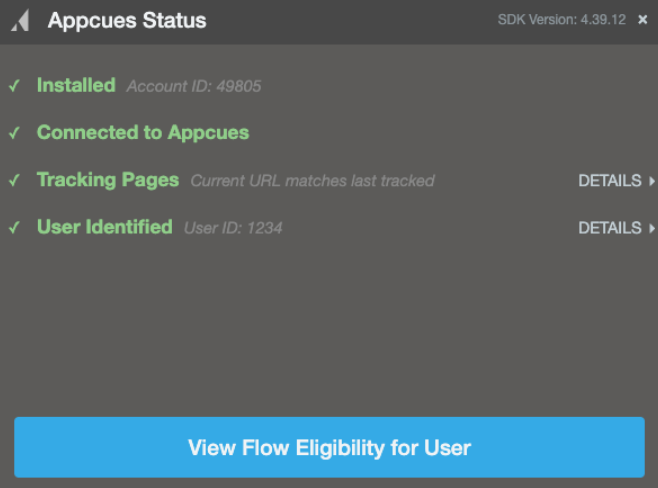
Open the Appcues debugger on the page where you expect the Flow to show. Confirm all rows display green checkmarks.
If any rows show red errors, you have an installation issue that needs to be resolved before the Flow can appear. See Installation Testing / Debugging for next steps.
Check user eligibility
There are two ways to check whether a user qualifies for a Flow.
From the Flow's settings page:
- Open the Flow's settings page in Studio.
- In the Audience targeting section, click Check eligibility.
- Enter the user ID you want to verify and click validate. The tool reports whether the user matches your audience conditions.
From the Users page:
- Open the Users page in Studio and search for the affected user. See Finding a User if you need help locating them.
- Open the Eligibility tab. This shows all live Flows, and whether the user currently qualifies for each one.
- If the Flow shows as Ineligible, click it to see the reason:
- A red X next to Audiences means the user doesn't match the audience targeting rules. Click View details to see which conditions fail.
- A red X next to Frequency means the user has already seen the Flow or a frequency limit is blocking it.
Event-triggered Flows appear as Ineligible in the Eligibility tab even if all conditions have a green check. This is expected — they only trigger when the specified event fires.
Check page targeting
Use the Test Page Targeting tool on your Flow's settings page.
- Open your Flow's settings page in Studio.
- Enter the URL where you expect the Flow to appear.
- The tool reports whether the URL matches your page and domain conditions.
If the result says "won't show", review your URL conditions. Common mistakes are covered in the Page targeting isn't matching section below.
Also confirm the domain where you're testing is selected in your Flow's page targeting settings. If you're testing in staging but only have your production domain selected, the Flow won't appear.
Check frequency settings
If you have a strict frequency limit enabled and multiple live Flows showing, your Flow may be blocked from appearing. You can override the frequency limit on individual Flows from the Flow's settings page.
If the Flow is set to Show once and the user has already seen it, it won't appear again. To test:
- Reset the user's Flow history from their profile page in Studio to make all "Show once" Flows eligible again.
- Use Test mode or a permalink to bypass frequency and audience rules entirely.
If a Show once Flow keeps appearing instead, see Flow keeps appearing after users have seen it.
Step isn't showing
The Flow starts, but a specific step doesn't appear. Use the Appcues debugger to identify the cause — it shows real-time details about which step is active and any errors.
Incorrect CSS selector
While the Flow is running, the debugger shows the active step under the Showing Flow section. If a step shows the error "Content omitted", the Tooltip or Hotspot is anchored to an element that isn't unique or can't be found on the page.
To fix:
- Open the Flow in the Builder.
- Navigate to the affected step.
- Click the gear icon on the step to view the current selector.
- Use Reposition Tooltip or manually refine the selector to target a unique, valid element. Add filters like Text or Order to narrow it down.
For detailed guidance on building stable selectors, see Troubleshoot element targeting.
Incorrect navigation step
If the debugger's Showing Flow section turns grey and says "Wait for matching page", the navigation step in the Flow doesn't match the URL the user actually navigated to.
To fix:
- Open the Flow in the Builder.
- Find the navigation step that precedes the missing step.
- Confirm the path in the navigation step matches the actual destination URL. For example, if users click a link to
/settingsbut the navigation step is set to/about, the Flow breaks. - If the destination URL contains dynamic segments (IDs, query parameters), use wildcards. See Build a Flow across pages for how to set these up.
Page tracking lost
If the debugger shows a red error next to Tracking Pages that doesn't recover, Appcues has lost track of the current URL. Expand the Tracking Pages section in the debugger — if the "Last Tracked URL" differs from the current URL, page changes aren't being tracked.
To fix, set the "enableURLDetection" setting to true in the window.AppcuesSettingsobject. See Single-Page Application Guide.
Flow breaks on page refresh
If the user refreshes the page or the application triggers a full page reload during a Flow, the Flow stops. This is expected — Flows don't persist across full page loads.
To prevent this:
- If a page refresh is unavoidable at a certain point, consider splitting the Flow into two separate Flows — one before the refresh and one after, triggered on the destination page.
Previous step didn't complete
If a Tooltip asks the user to click a specific element to advance (for example, a navigation link), clicking elsewhere on the page won't progress the Flow. The step requires interaction with the targeted element.
Confirm the step's advance behavior in the Builder:
- If the step advances on element click, the user must click the exact targeted element.
- If the step advances on button click, the user must click the "Next" button within the Tooltip.
Flow keeps appearing after users have seen it
A Flow set to Show once keeps coming back for the same users. On the Flow's analytics page, Total users is much higher than Unique users.
The Flow starts with a Tooltip or Hotspot group
In legacy Flows, a Flow that starts with a Tooltip or Hotspot counts as shown only after the user interacts with every step in the first step group. Interacting means clicking Next, clicking the target element, or dismissing the step. A user who sees the first Tooltip and keeps working without touching it sees the Flow again later.
To fix it, do one of the following:
- Put the first Tooltip in its own step group. The user then only has to interact with that one Tooltip for the Flow to count as shown.
- Start the Flow with a Modal or Slideout, which counts as shown as soon as it appears.
- Rebuild the Flow in Flows 2.0, where a Tooltip counts as shown when it displays, whether or not the user interacts with it.
See Set Flow Frequency for how each step type is tracked.
The Flow uses Show until completed (Flows 2.0)
Show until completed stops showing the Flow only after the user clicks the button on the last step. Users who reach the last step and leave without clicking it see the Flow again. On the Flow's analytics page, check the Completed column. If it's near zero, users are reaching the end without finishing.
Flow priority conflicts
If multiple Flows target the same page and audience, only one shows at a time. By default, the most recently published Flow takes priority. On the next qualifying page view, the next Flow in priority order shows.
If the wrong Flow is appearing:
- Review Flow Priorities to understand the priority order.
- Adjust priority tiers or narrow audience/page targeting so Flows don't compete.
- Check the user's Eligibility tab in Studio — it lists all eligible Flows in priority order.
Page targeting isn't matching
Regex patterns
If using a regex pattern for URL matching, confirm:
- The operator is set to matches regex (not "contains" or "is").
- The pattern is valid. Test it with a regex tester.
AND vs OR conditions
If using multiple URL conditions, check whether they use All (AND) or Any (OR) logic.
Example of a common mistake: You want the Flow to appear on pages containing "account", "dashboard", or "payments." If you use All (AND), the Flow only appears on a URL that contains all three words simultaneously (e.g., https://yourapp.com/account/dashboard/payments) — which may not exist.
Switch to Any (OR) so the Flow appears on any page containing at least one of those words.
Content Security Policy blocking Appcues
Some applications use a Content Security Policy (CSP) that blocks external resources not explicitly allowed. This can prevent the Appcues SDK or Builder from loading, as well as block styling, fonts or other resources.
To confirm:
- Open your browser's console (right-click > Inspect > Console tab) and look for errors that mention a Content Security Policy related to Appcues.
- If you see CSP errors, your development team needs to add Appcues domains to the allow list. See Content Security Policies for the required configuration.
Still stuck?
Collect the following and contact support:
- The Flow name
- The affected user's User ID.
- The page URL where the issue occurs.
- A screenshot or screen recording showing the problem.
- The step number where the issue occurs (if a specific step isn't showing).
- Screenshots of the debugger output, especially the Showing Flow section and any error messages.
- Any console errors visible in the browser's developer tools.