Mobile Surveys
Add survey questions to a mobile Flow, then collect and view responses.
Table of Contents
Collect feedback inside a mobile Flow with survey content blocks. Appcues Mobile offers four question types — Text input, Rating, Single-select, and Multi-select — that you can add to a step, style, and mark as required. To build one end to end, see Create a Mobile Survey Without Code.

Question types
Text input
- Click the input box in the builder preview to style it — set the placeholder color, input color, and box style.
- Type controls the input keyboard and autofill suggestions the end user sees.
- Short answer and long answer set the size of the input box.
- Maximum characters limits how much the end user can enter.
Rating
- Choose a number, emoji, or star rating.
- Set the selector and selected-state colors — preview the selected state with the eye icon.
- Number and emoji ratings can be horizontal or vertical.
- Maximum value is 5 for star and emoji ratings. Number ratings max out at 5 horizontally and 10 vertically.
Single-select and multi-select
- Selector color and Selected state color are editable — preview the selected state with the eye icon.
- For multi-select, set the minimum and maximum number of options the end user can choose. The range is based on how many options you've added.
Randomize option order
For single-select and multi-select questions, open the block's Behavior settings and turn on Randomize option order to shuffle the order options appear in for each user. This reduces order bias, where users tend to pick whatever sits at the top.

Requires Mobile SDK v5.0.0 on the device. You can turn randomization on for any build, but options only shuffle once the user is on SDK v5.0.0 or later. On older versions the options show in their default order — nothing breaks. See Installing Appcues in Mobile Applications.
Add and edit options
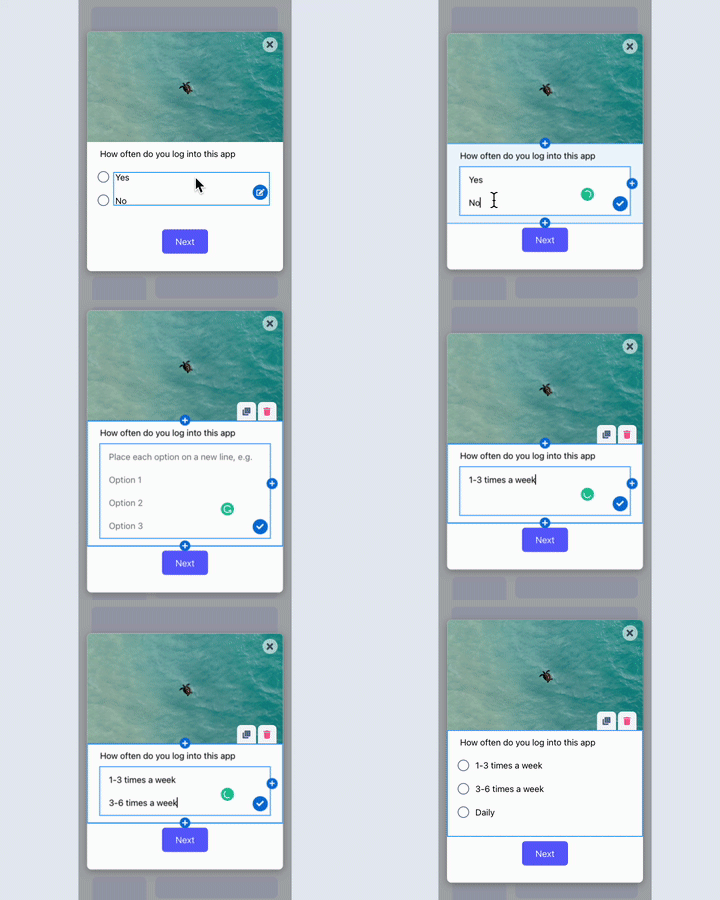
Single- and multi-select blocks start with default options. Click an option and the pencil icon to edit it.
Mark a question as required
In the block's Behavior settings, turn on Required field. Required questions show an asterisk (*) to the end user. You can also set an error color and error message and preview them with the eye icon. If the user tries to move forward without answering, the error message appears and the question is highlighted in the error color.

When survey responses are submitted
Responses are submitted when the user completes a step with a button action — for example, a Next step button. A response isn't submitted if a required question is unanswered and the user tries to move forward.
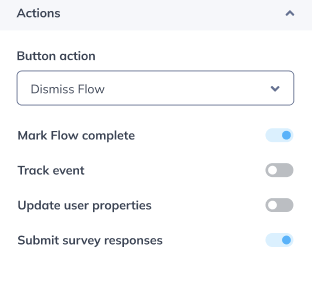
Each button action has a Submit survey toggle:
- On by default: Next step, Go to custom step, Dismiss flow.
- Off by default: Previous step, Go to link, Trigger Flow.
A few behaviors to know:
- Dismissing with the skip X never submits results.
- A Dismiss flow button action submits partial results — whatever has been filled out so far.
- If the app is closed, nothing is submitted.
- Avoid carousel steps for surveys — swiping doesn't submit answers, since responses are only submitted through a button action.
Route users by their survey answer
Send users down different paths based on how they answered a survey question earlier in the same Flow. This uses conditional actions: a single button (or image) click runs different actions for different users, so you don't need to clone a Flow for each audience.
Requires Mobile SDK v5.0.0 on the device. You can build conditional actions on any SDK version, but they only run once the user is on SDK v5.0.0 or later. On older versions nothing breaks — the click always runs its default action. See Installing Appcues in Mobile Applications.
Conditions are checked top to bottom, and the first condition a user matches wins. If no condition matches, the click runs its Default action — which is also what runs for anyone on an older SDK.
To branch a survey step's button on the answer:
- Select the button block. In the sidebar, expand Actions and turn on the Conditional action toggle. An If condition block appears.
- Set Select condition type to Survey question, then choose the question the user answered earlier in this Flow.
- Set the operator (for example, Equals) and enter the value to match. The condition header updates to reflect your rule.
- Under Button action, choose what this branch does — for example, Go to custom step to send matching users to a specific screen.
- Click + Add condition for more branches, and drag to reorder them. Put the most specific rules on top.
- Under Default, set the Button action that runs when no condition matches.
Example: An onboarding survey asks "Have you connected your calendar yet?" with Yes and Not yet, ending in a Continue button. Add a condition where the answer Equals Not yet with a Go to custom step action pointing to your setup screen, and set the Default action to Next step. Users who answered Not yet jump to setup; everyone else advances.
You can also branch on who the user is (a user property like plan or role) instead of their answer, and fire a Track event or Update user properties when a condition matches. For the full reference and troubleshooting, see Set up conditional actions.

View survey results
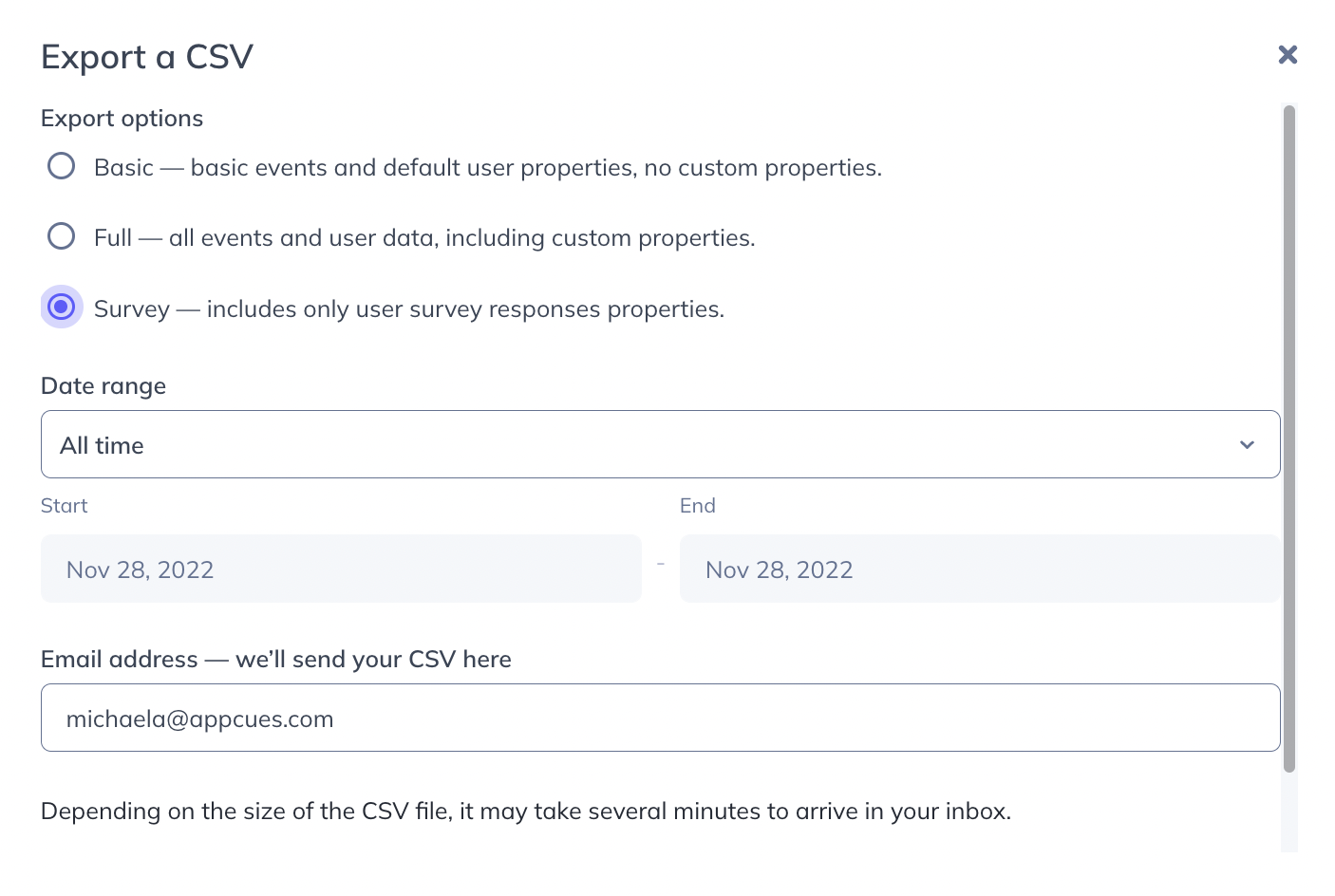
As with Appcues web, you have two ways to view survey results: read form responses on the Flow analytics page, or click Export there and choose the full or survey option. Mobile survey events are also available in the public API, though without the formatting of the Studio export.
If survey responses aren't recording
- A required question is blocking submission. The user must answer it before the step submits. Check which questions are marked required.
- The button action isn't submitting. Confirm the button's Submit survey toggle is on for that action.
- Responses are missing entirely. Users who close the app or dismiss with the skip X don't submit. Confirm users are completing the step with a submitting button action.
- Still stuck? Collect the Flow URL from Studio, the affected User ID, the SDK version, and a screen recording, then contact support.