Build a Flow Across Pages
Learn how to add navigation steps in your Flows.
Table of Contents
Add navigation steps to guide users from one page to another within a single Flow — using redirects, "let them navigate" steps, and dynamic URL handling.
Also known as: multi-page flow, navigation steps, page change, redirect step, let them navigate
When you need a navigation step
Any time the URL changes between two content steps, you need a navigation step. Without it, Appcues loses track of the Flow when the page changes and the remaining steps won't appear.
Don't start a Flow with a navigation step. A redirect as the first step sends users to a new page with no context, which feels like a bug. It also prevents Flow analytics from recording correctly. Instead, show a content step first (like a Modal or Tooltip), then navigate.
Add a navigation step
- Open your Flow in the Builder.
- Click Navigate in the bottom-left corner (next to the Flow name). The Builder enters navigation mode — you can interact with your app as your user would.
- Navigate to the page where the next step should appear.
- Click Switch back to Build mode at the bottom of the screen. A navigation step is added between the two pages.
- Choose the navigation type: Redirect or Let them navigate (see below).

Choose the right navigation type
| Type | Use when… | How it works |
|---|---|---|
| Redirect | The previous step has a button that advances the user | Appcues automatically sends the user to the specified URL when they click the button |
| Let them navigate | The user needs to interact with your app to reach the next page | Appcues waits for the user to arrive at a URL that matches the pattern you specify |
Redirect
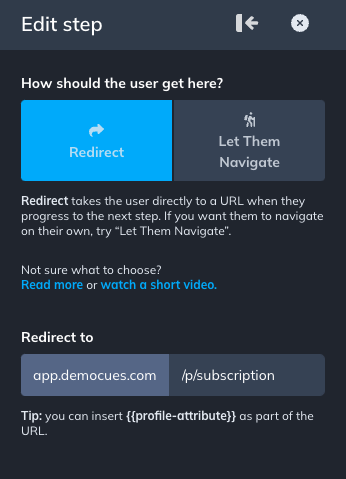
Use Redirect when the step before the navigation has a button (like "Next" in a Modal or Tooltip) that should take the user to a new page.
In the navigation step settings, enter the full destination URL. Appcues sends the user there automatically when they click the button in the preceding step.
URL-encode special characters. If the destination URL contains special characters, encode them:
| Character | Encoded |
|---|---|
| Space | %20 |
* |
%2A |
+ |
%2B |
& |
%26 |
= |
%3D |
? |
%3F |
Example: https://app.example.com/%2A/customer?name=Ricky%20Perez
Wildcards and regex can't be used in Redirect steps. The browser needs an exact URL to navigate to. Use custom properties for dynamic URLs (see below).
Let them navigate
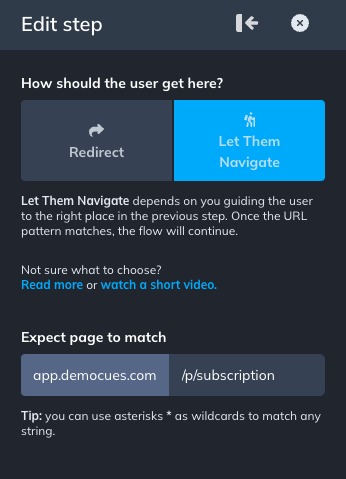
Use "Let them navigate" when the user interacts with your app to move to the next page — for example, clicking a link or menu item that the previous Tooltip pointed to.
In the navigation step settings, enter the URL pattern in the Expect next page to match field. Appcues waits for the user to arrive at a matching URL before showing the next step.
If the Tooltip before this step has no "Next step" button, clicking the target element automatically advances the Flow to the "Let them navigate" step.
Handle dynamic URLs
Some URLs contain user-specific or session-specific segments that change between users (for example, /files/5e0df/ where the ID is unique per account). You have two options:
Use wildcards
Replace each dynamic URL segment with an asterisk (*).
Example:
- Actual URL:
https://app.example.com/p/all-files/5e0df/file/3dfe08 - Wildcard pattern:
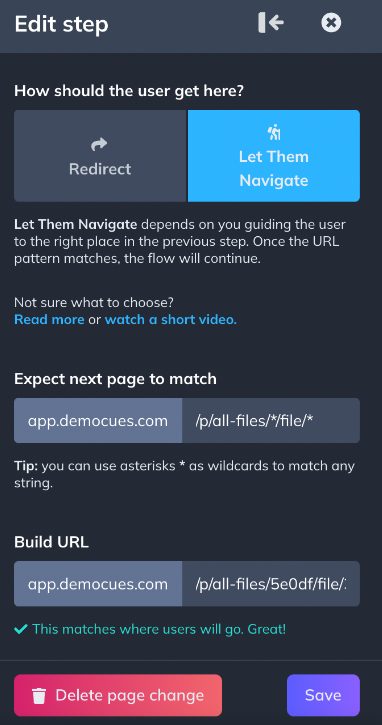
https://app.example.com/p/all-files/*/file/*
In the navigation step settings:
- Set the Expect next page to match field to the wildcard pattern.
- Set the Build URL to the real URL (no wildcards) so the Builder can open on the correct page.
Wildcards only work with "Let them navigate." Since a wildcard isn't a real URL, the browser can't redirect to it.
How matching works: When the user navigates to any URL that fits the pattern (regardless of what the dynamic segments contain), the step completes and the Flow continues.
Use custom properties
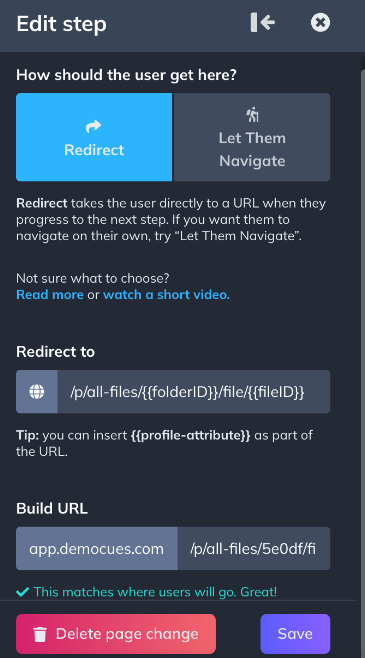
Replace dynamic URL segments with user property variables in double curly braces: {{propertyName}}.
Example:
- Actual URL:
https://app.example.com/p/all-files/5e0df/file/3dfe08 - With properties:
https://app.example.com/p/all-files/{{folderID}}/file/{{fileID}}
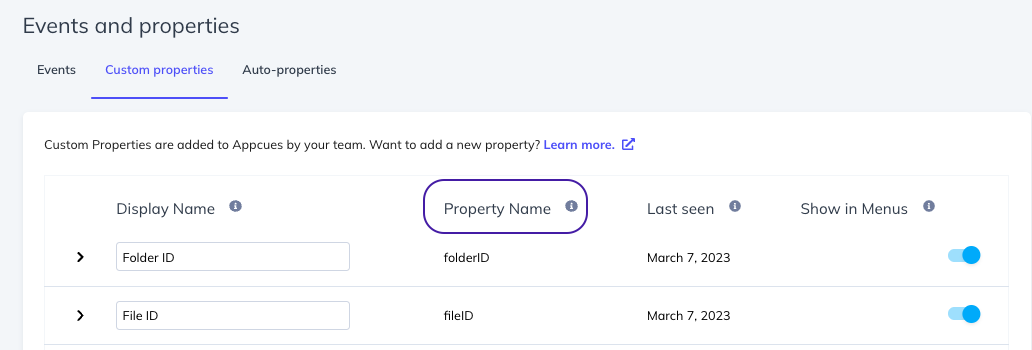
The property must already exist in Appcues (sent via your installation or an integration). Check your properties in Settings > Data > Properties.
Property names are case-sensitive. Match the exact syntax from the Property Name column in your settings.
Custom properties work with both Redirect and "Let them navigate" steps. At runtime, Appcues replaces the variable with the current user's property value.
Custom property values don't render in Preview mode. Use Test mode or publish to staging to verify.
Confirm it worked
- Walk through the Flow as a test user. At each navigation step, confirm you arrive on the correct page and the next content step appears.
- If using dynamic URLs, test with at least two different users to verify the wildcard or property pattern matches different URL values.
Troubleshoot navigation steps
Flow breaks when the page changes. A navigation step is missing between the two content steps. Add one with the correct navigation type and destination URL.
Redirect sends the user to the wrong page. Check the URL in the navigation step settings for typos or unencoded special characters.
Redirect goes to the wrong domain. If your site uses an HTML <base> element with a different origin than the actual page URL, relative redirect URLs (like /dashboard) could resolve against the <base> href instead of the page's address bar. The SDK now resolves all relative URLs against the actual page origin. If you're on an older SDK version, use fully absolute URLs (including the domain) in every redirect step as a workaround.
"Let them navigate" step never completes. The URL the user lands on doesn't match the pattern. Check for typos in the wildcard pattern, or confirm the dynamic segments are in the right positions. Test the pattern against the actual URL.
Custom property value isn't replaced. The property name is case-sensitive — confirm it matches exactly. Also verify the property has a value for the test user in Settings > Data > Properties.
Still stuck?
Collect the following and contact support:
- The Flow URL from Studio
- The navigation step settings (screenshot)
- The URLs involved (source and destination)
- The affected user's User ID