Troubleshoot element targeting
Fix missing or misplaced steps when Appcues can't find the right element on your page.
Table of Contents
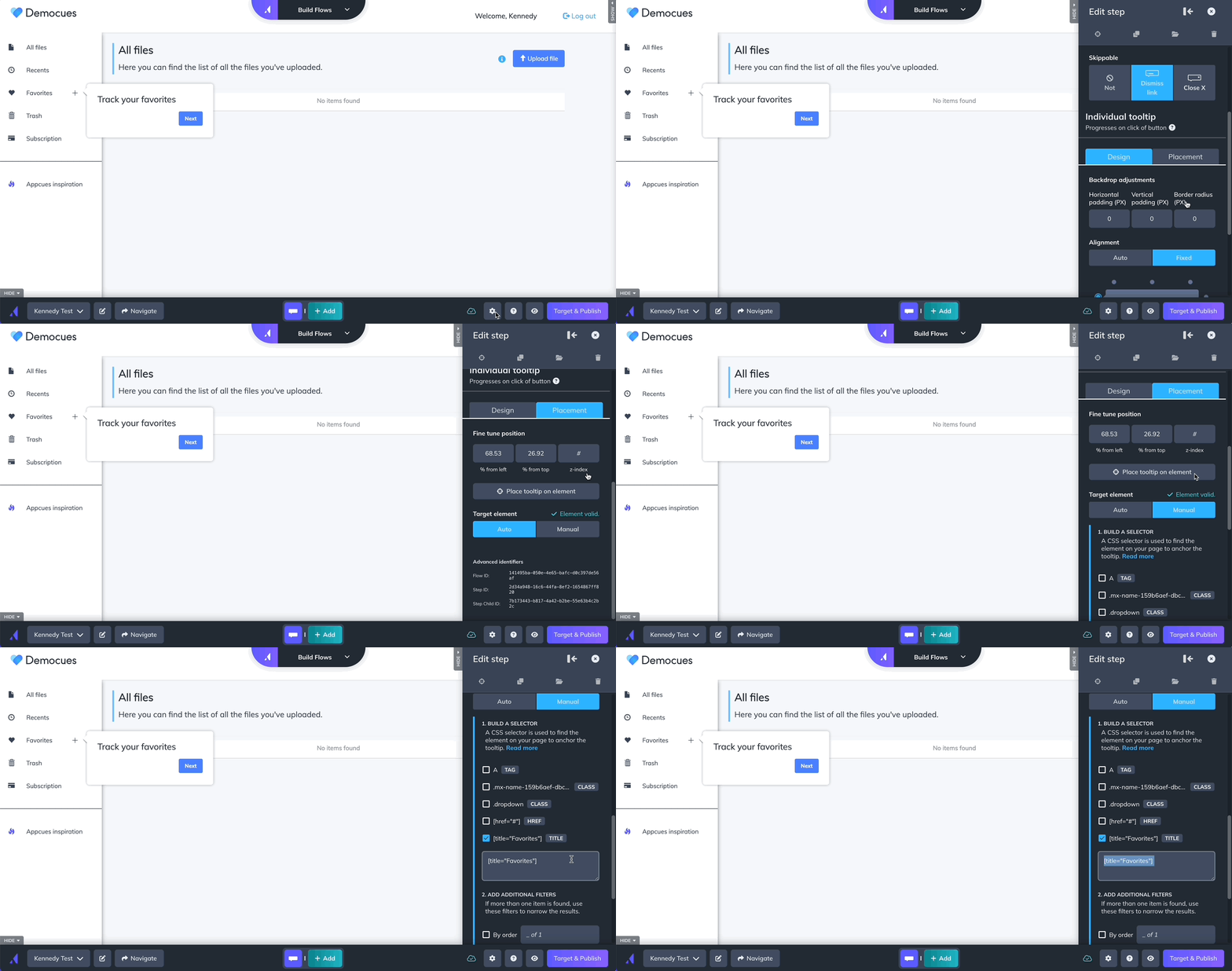
When you place a Tooltip, Hotspot, Pin or Embed on an element in your app, Appcues saves the location of that element so it can find it again later. That saved location is called a CSS selector — think of it as an address that tells Appcues exactly where on the page to attach your step.
Most of the time, Appcues picks the right address automatically. This article helps you fix it when it doesn't.
How Appcues finds elements on your page
When a user loads a page where your Experience should appear, Appcues scans the page for the elements your step is attached to. It does this by looking up the CSS selector — the "address" — it saved when you placed the step in the Builder.
If Appcues finds the element, the step appears. If it can't find it, the step won't show — and you'll see a "could not find element" issue in Analytics.
Why a step might not appear
There are four common reasons Appcues can't find the element it's looking for:
- The element doesn't exist for every user. If you attached a Tooltip to a button that only appears for paid users, free users won't see the step. Only target Flows to users who have the element on their page.
- The element hasn't loaded yet. Some page elements appear after the page initially loads (for example, content that loads after an API call). If Appcues scans the page before the element appears, it won't find it.
- The address keeps changing. Some web frameworks (like React or Ember) generate random class names every time the page loads. The address Appcues saved on Monday might not match what's on the page on Tuesday. This is the most common issue — see Fix a dynamic selector below.
- The address is too vague. If the address matches multiple elements on the page (for example, every button), Appcues can't tell which one you meant and won't show the step.
Check which selector Appcues is using
- Open the Experience in the Appcues Builder.
- Click the gear icon next to the Tooltip, Hotspot, or Pin you want to check. The element settings panel opens, showing the current CSS selector.
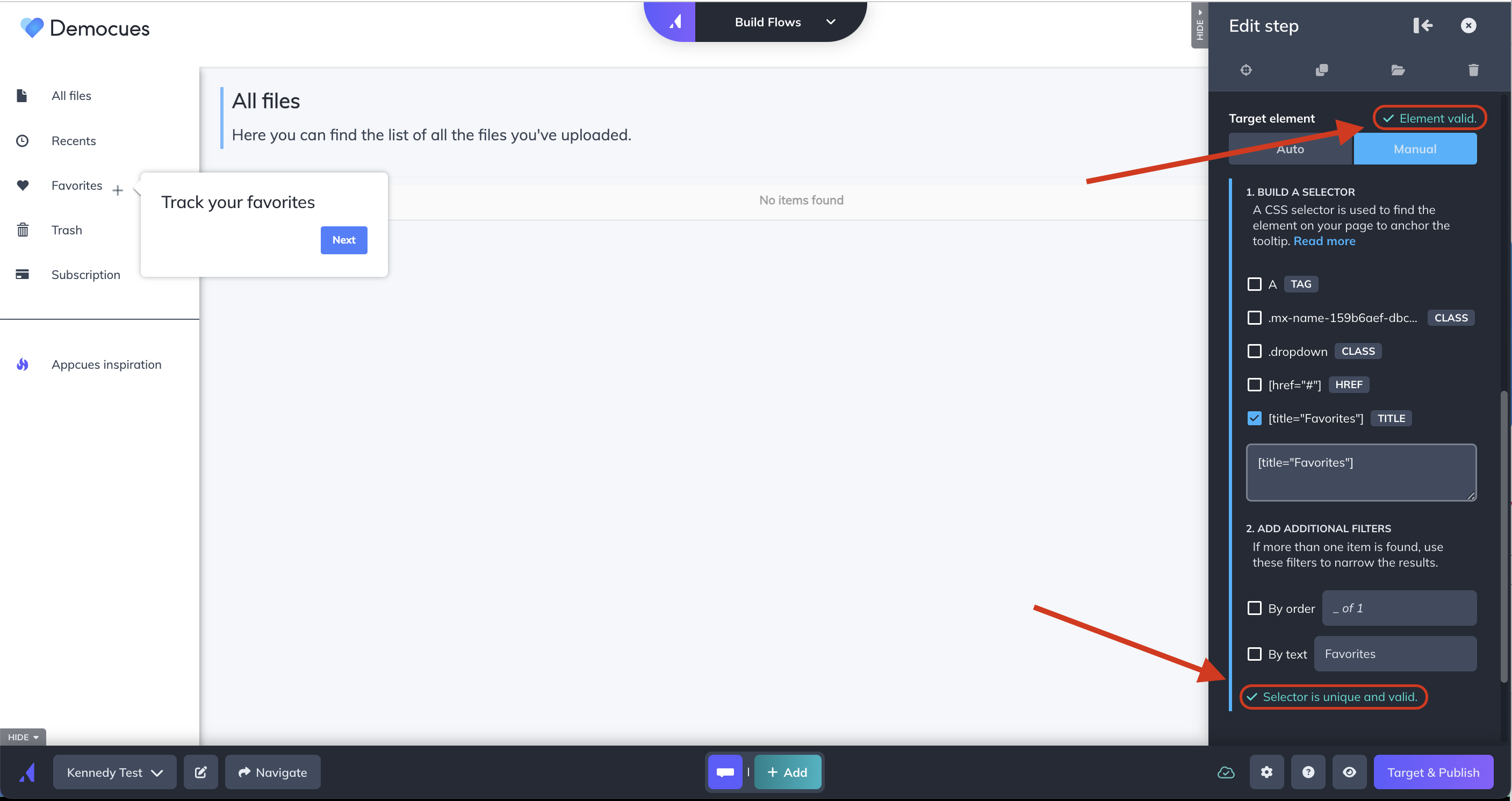
- Look at the message below the Element field:
- "Element valid" — Appcues found exactly one matching element. No changes needed.
- "Element not unique" — Appcues found more than one matching element. You need a more specific selector.
- "Element not found" — Appcues can't find any matching element. The selector needs to be updated.
Attributes available in the Builder
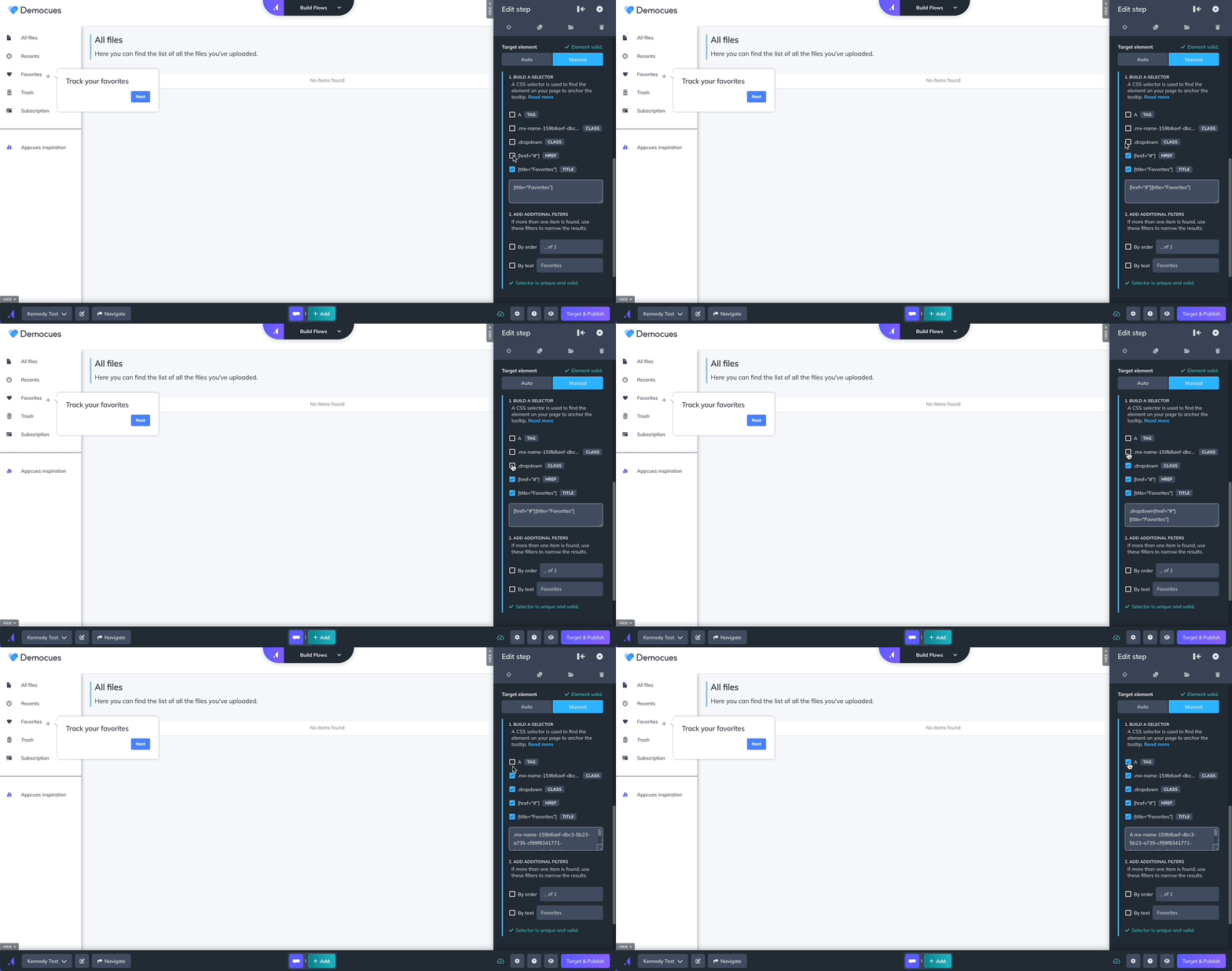
When you click the gear icon on a step, the Builder lists attributes it detected on the targeted element. You can click any of these to use it as your selector instead of the auto-generated one. Here's what each attribute is and when it's useful:
-
HTML tag type — The kind of element, like
button,a(link), orinput. Useful as a starting point but rarely unique on its own. Example:button -
id — A unique identifier assigned to the element. This is the most reliable attribute to target because IDs are meant to appear only once per page. Example:
#save-settings-button -
class — A style label applied to the element. Elements can share classes, so check that the class is specific enough. Example:
.billing-upgrade-cta -
href — The URL a link points to. Useful for targeting a specific navigation link or call-to-action. Example:
a[href="/settings"] -
src — The source URL for images or media. Helpful when targeting a specific image on the page. Example:
img[src="/icons/help.svg"] -
alt — The alt text on an image. A good option when images have descriptive alt text. Example:
img[alt="Profile photo"] -
title — Hover text on an element. Can work as a selector when the title is descriptive and unique. Example:
[title="Edit profile"] -
type — The type of an input or button (like
submit,checkbox, ortext). Useful for forms but often not unique enough on its own. Example:input[type="checkbox"] -
name — The name assigned to a form field. Common in forms and usually stable. Example:
input[name="email"] -
placeholder — The placeholder text inside an input field. Handy for targeting specific form fields. Example:
input[placeholder="Search..."]
Not every element will have all of these attributes — the Builder only shows what's available on the element you targeted. When choosing, prefer id first, then class, name or data- attributes. Avoid relying on attributes that could change frequently.
Fix a dynamic selector
Dynamic selectors contain randomly generated text that changes on every page load. They look something like this:
div.menu-panel__2Hkc9 > header
The __2Hkc9 part is random — it changes each time. There are two ways to fix this: ask your dev team for a permanent fix, or adjust the selector yourself in the Builder.
Ask your dev team (recommended)
The most reliable fix is to have your development team add a stable attribute to the element you're targeting. This is usually a quick change — a single line of code — and it prevents the problem from coming back.
Ask them to add a data-appcues attribute to the element. For example:
<button data-appcues="save-settings">Save</button>
Once the attribute is in place, open the Builder, click the gear icon on your step, and set the selector to:
[data-appcues="save-settings"]
This gives you a clean, human-readable address that won't break when the rest of the page markup changes.
Tip: Make sure your dev team adds the attribute to the actual button, link, or element users interact with — not a wrapper or container around it. Targeting a wrapper can cause the step to appear in the wrong position.
If your team plans to use this approach across multiple elements, it helps to keep a shared list of data-appcues values so everyone knows what's available to target.
Adjust the selector yourself
If you can't get a dev change right away, you can edit the selector directly in the Builder:
- Open the Flow in the Builder and click the gear icon on the affected step.
- In the Selector field, replace the random portion with a pattern match. For the example above, change it to:
div[class^="menu-panel__"] > headerThis tells Appcues to look for any element whose class starts withmenu-panel__, regardless of the random text that follows. - Alternatively, look at the list of attributes the Builder shows below the selector field (like
id,title,name, orplaceholder). Click any attribute that uniquely identifies the element to use it instead. - Click Save, then preview your Flow to confirm the step appears correctly.
This approach works but is more fragile than a
data-appcuesattribute. If your product's markup changes significantly, you may need to adjust the selector again.
Fix a selector that's too generic
If the selector message says "Valid, but not unique," the address matches multiple elements and Appcues doesn't know which one to use.
- Open the Flow in the Builder and click the gear icon on the affected step.
- Look at the attribute list below the selector field. Choose an attribute that uniquely identifies the element — an
idis ideal. - If no unique attribute is available, select By Order to tell Appcues which of the matching elements to use (for example, the 2nd button on the page) or By Text if the text is static for all users (for example, in one language only).
- Click Save and preview your Flow.
Find a selector manually
If the Builder's attribute list doesn't have what you need, you can find a selector using your browser's developer tools. This requires some comfort with HTML — if you're not sure, ask your development team for help.
- Open your app in a separate tab where the Appcues Builder isn't open.
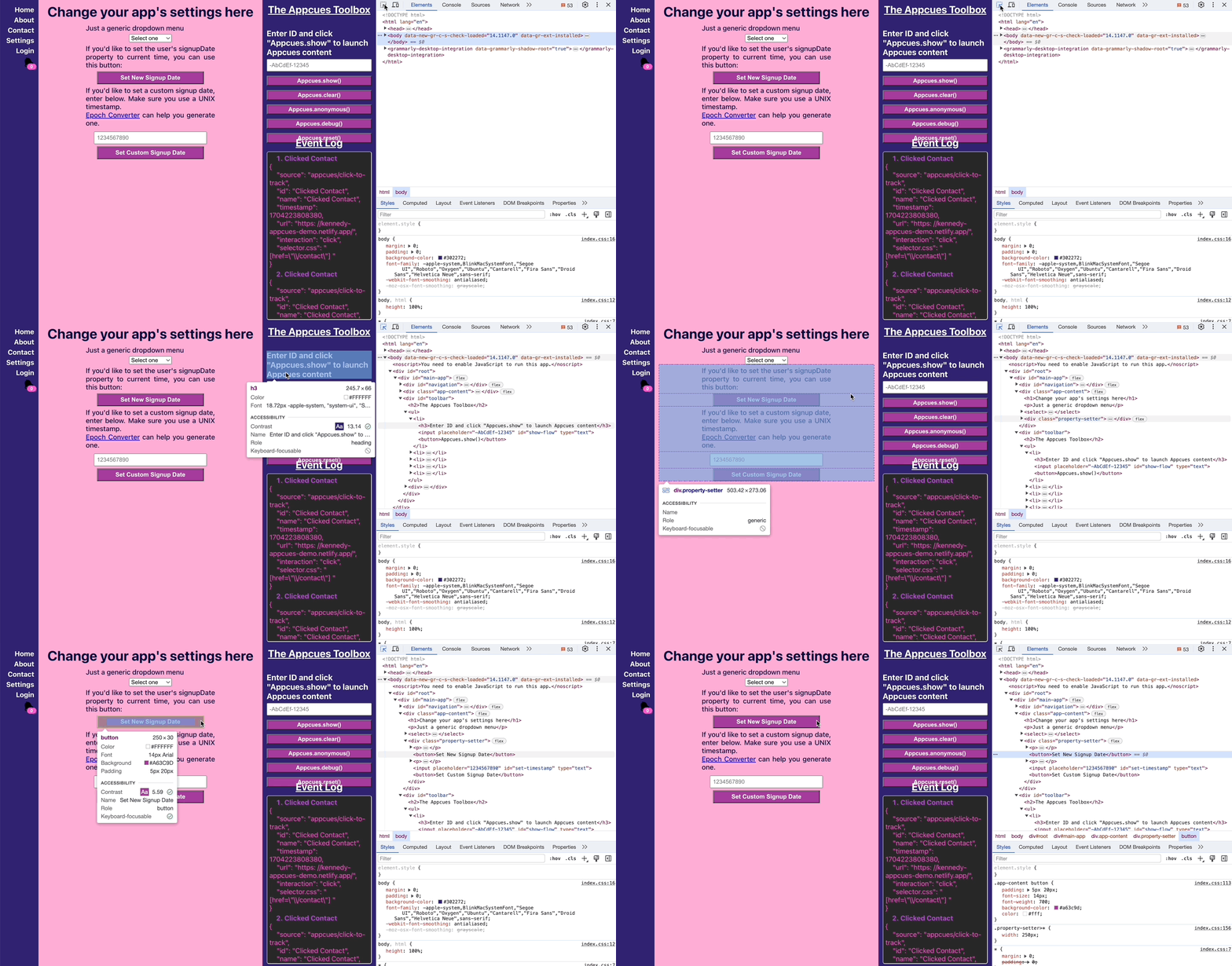
- Right-click the element you want to target and select Inspect. Chrome DevTools opens with the element highlighted.
- Look at the highlighted element for an
idorclassattribute:- If it has an
id, use:#the-id-value - If it has a
class, use:.the-class-name
- If it has an
- Copy the selector, go back to the Builder, click the gear icon on your step, and paste it into the Element field.
- Confirm the message says “Unique and valid”.
Tip: The Appcues Builder may interfere with Chrome's Inspect tool. Open the same page in two tabs — one with the Builder open and one without — so you can inspect elements freely.
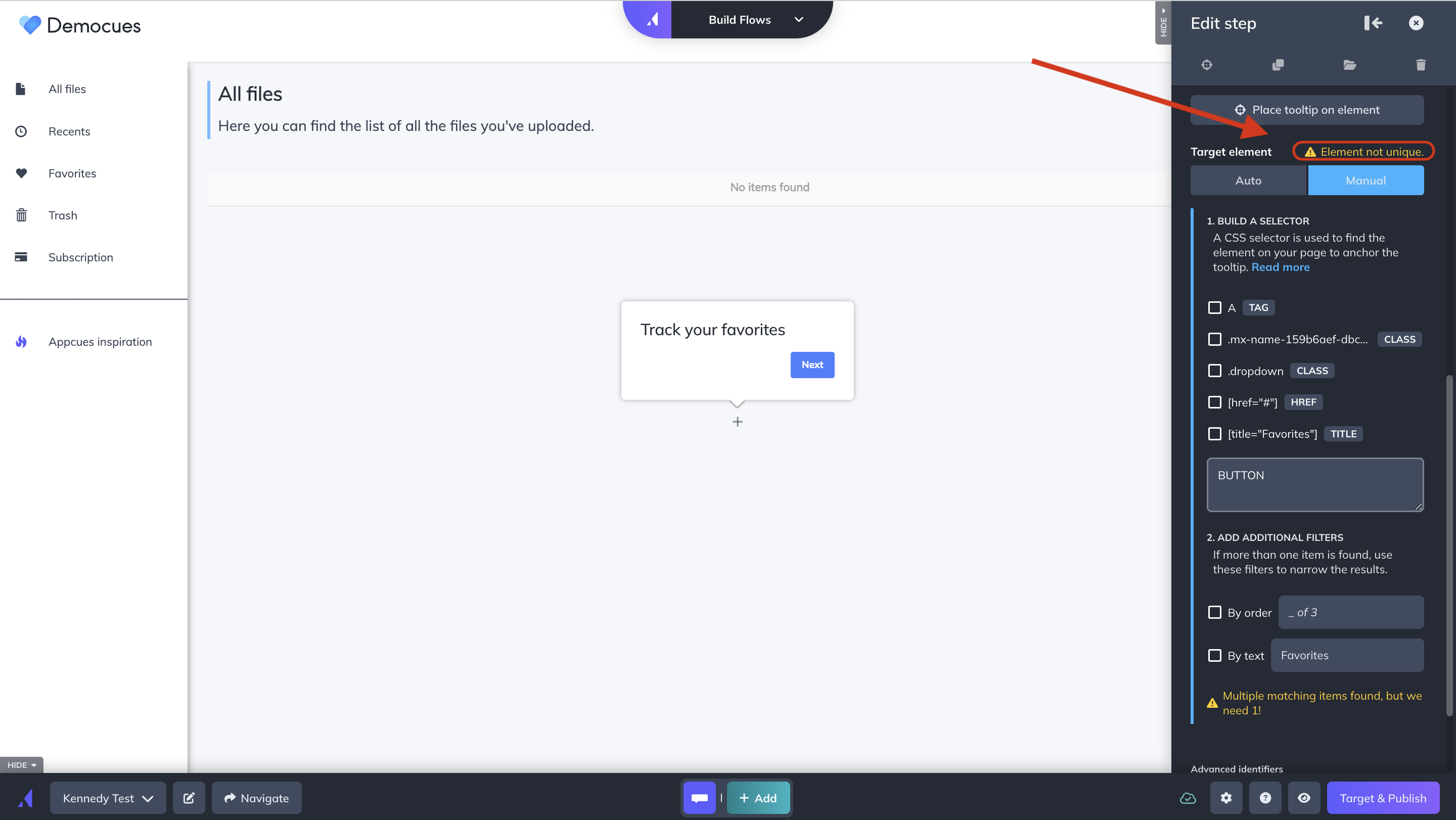
If the element doesn't have a useful id or class, you can target it by its tag type combined with either its position or its text:
-
By tag type + By order: Use this when the element appears in a consistent position on the page. For example,
BUTTON+ "By order 1 of 3" filter targets the third button. This works well for navigation bars or toolbars where the layout is stable. -
By tag type + By text: Use this when the element has unique visible text. For example,
BUTTON+ “By text Export”. This works well for action buttons with distinctive labels like "Save," "Export," or "Invite team."

Avoid placement issues from the start
- Only attach steps to elements that exist for every user you're targeting. If a button only shows for admins, target that Flow to admins only.
- Attach steps to the actual button, link, or card you want to highlight — not a parent container that wraps multiple elements. Targeting a wrapper can cause the step to land in the wrong spot.
- Avoid attaching steps to elements that appear inside dynamic lists (like "Project 2" in a list of projects). If a user has fewer items, the element won't exist.
- Test your Flow as a new user with an empty state. Selectors sometimes differ between empty and populated views.
If you work with a development team, share Preparing your frontend for Appcues with them. It covers how to add stable attributes and naming conventions that make targeting easier for everyone.
Confirm it worked
After updating a selector:
- The Element field shows "Unique and valid."
- Previewing the Experience displays the step in the correct position.
- Analytics no longer reports "cannot find element" issues for that step.
If it's still not working
If you've tried updating the selector and the step still won't appear, reach out to support@appcues.com with:
- The Experience name or ID
- The step number that doesn't show
- A screenshot of the element you're targeting