Preview Mobile Flows
See a Flow render on your device before you publish it.
Table of Contents
Preview lets you open a Flow you're building on a real device so you can see how it renders before you publish. You scan a QR code (or open a link) and the Flow loads in your app exactly as you're designing it in the mobile builder.
Also known as: testing a mobile Flow, previewing on device.
Prerequisites
- The Appcues SDK is installed and initialized in the app you're testing. Preview loads the Flow through your app, so it can't work without the SDK. See Installing the Mobile SDK.
- The Appcues URL scheme is configured in your app. This is what lets the preview link hand off from your phone into your app. Configure it once per platform:
- iOS: URL Scheme Configuring
- Android: URL Scheme Configuring
- React Native: URL Scheme Configuring
- Flutter: URL Scheme Configuring
- Ionic: URL Scheme Configuring
- The app is installed on the device you'll preview on (not just a simulator).
If you skip the URL scheme step, the preview link opens a browser landing page instead of your app. This is the most common reason preview "doesn't work."
Steps
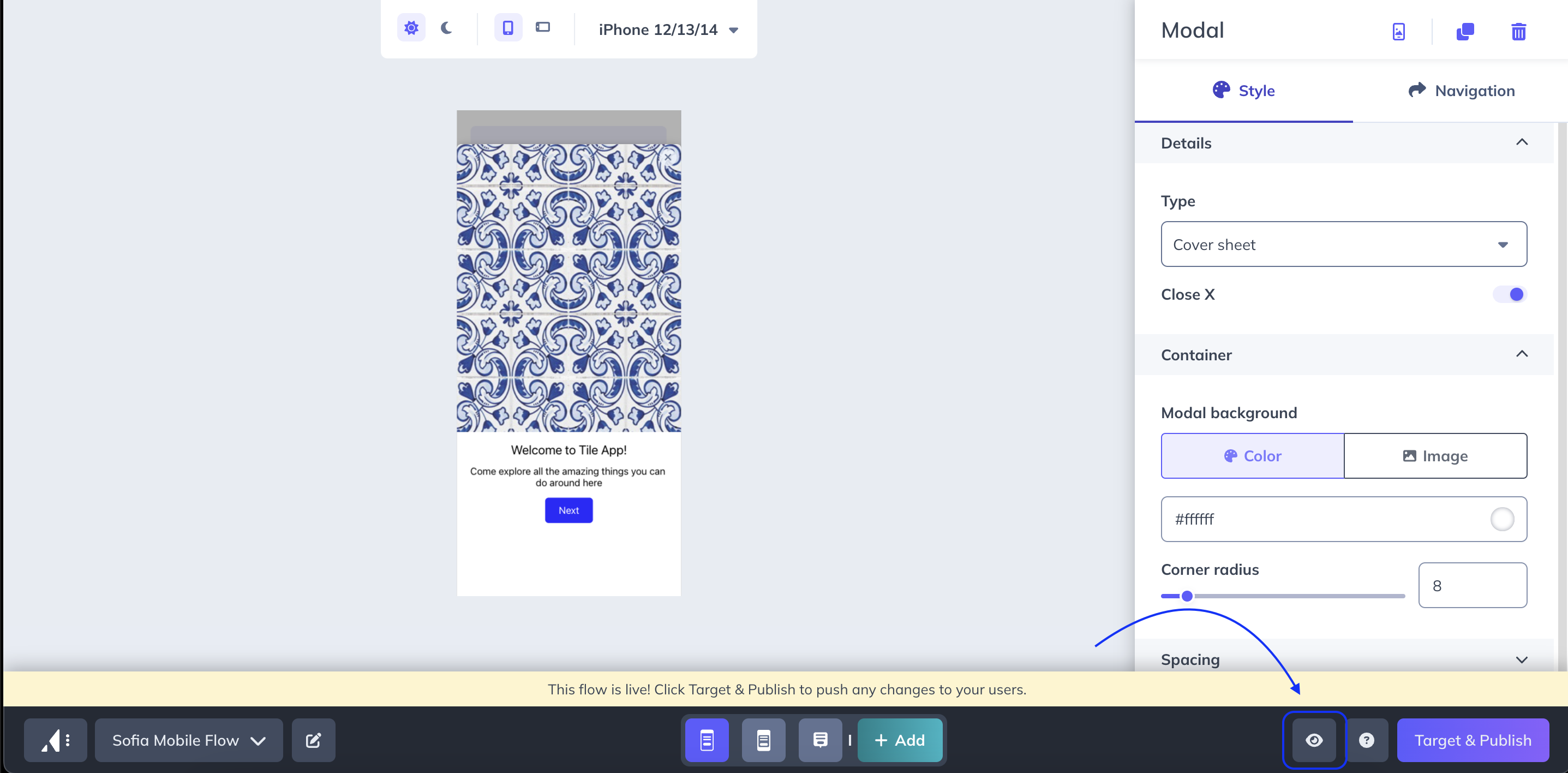
- Open the Flow in the mobile builder and click the eye icon in the bottom toolbar. A modal appears with a QR code and a preview URL.
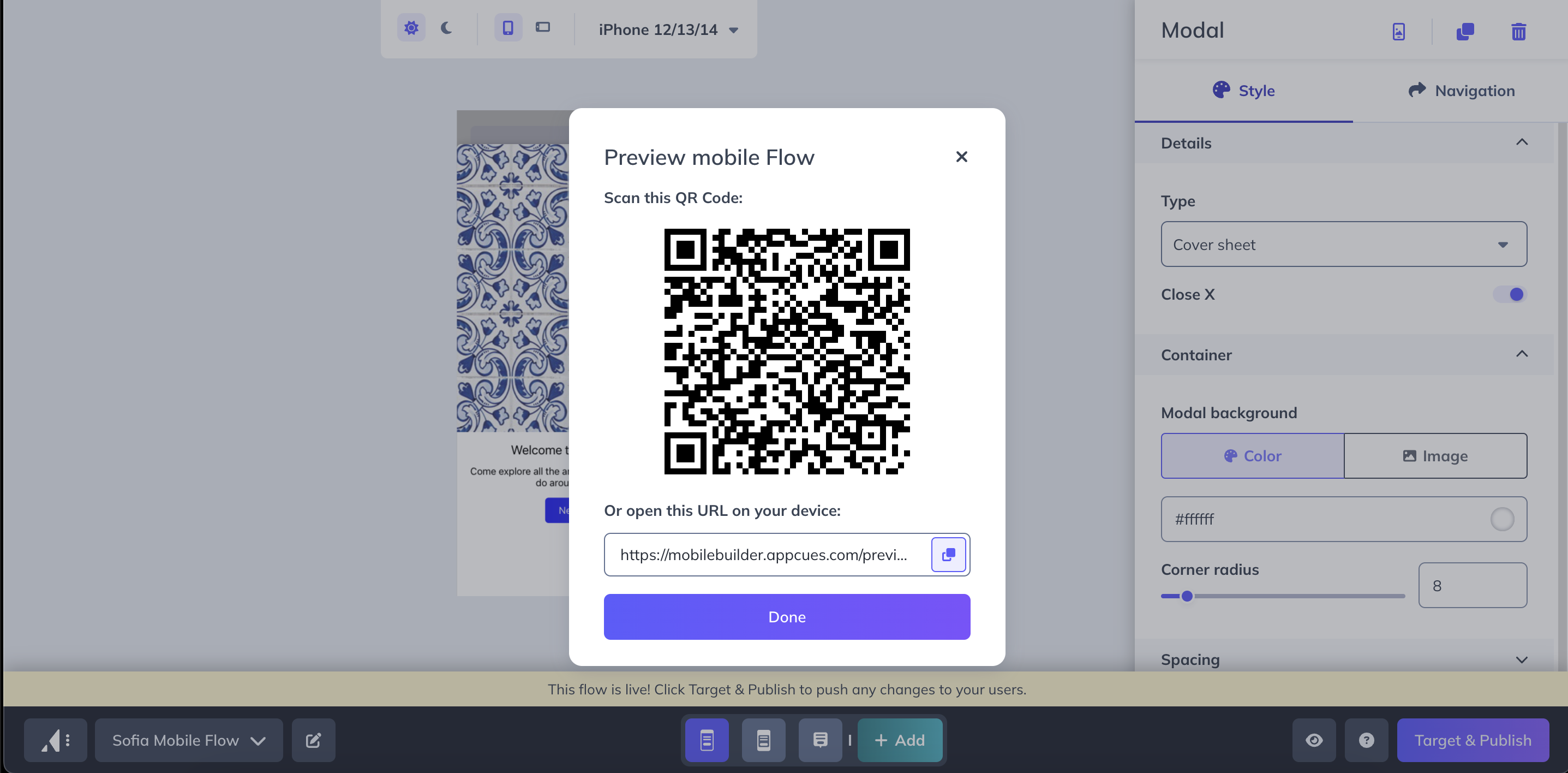
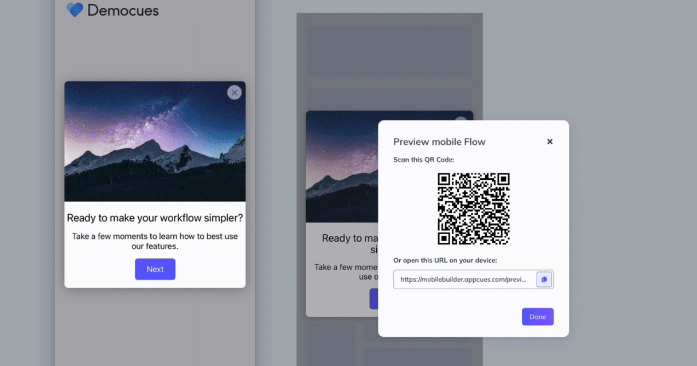
- Get the preview link onto your device. Either scan the QR code with your phone's camera, or copy the URL and send it to yourself (for example, by text or a messaging app).
- Open the link on your device. Your app launches and displays the Flow you're designing.
Confirm it worked
- Your app opens and the Flow renders on screen the way it looks in the builder.
- Edits you make in the builder appear when you re-open the preview link — preview always loads the current draft, so you don't need to publish to test changes.
If the preview opens a browser instead of your app
- Confirm the URL scheme is configured for your platform (see Prerequisites). This is the cause the vast majority of the time.
- Rebuild and reinstall the app after adding the URL scheme — the change only takes effect in a fresh build.
If the link opens an Appcues landing page with help options, the SDK isn't installed or initialized in the app. Finish installing the SDK and try again.
If your app opens but the Flow doesn't appear
- Make sure you're previewing from the same Appcues account the app is initialized with.
- Reopen the preview link — a preview session loads once; it won't re-trigger on its own.
- If it still doesn't render, open the Mobile Debugger to confirm the SDK is connected and receiving Appcues.
Still stuck?
Collect the following and contact support:
- The platform and OS version of the device you're testing on.
- Whether the preview link opens your app, a browser landing page, or nothing.
- A screenshot or screen recording of what you see on the device.
- Confirmation that the SDK and URL scheme steps in Prerequisites are done.