Build Mobile Embeds
Show Appcues content inside fixed areas of your app without interrupting users.
Table of Contents
Embeds place Appcues content directly into predefined areas of your app — a card on a home screen, a banner above a list, a slot in a settings page. Unlike Modals and Tooltips, an Embed sits inline and doesn't interrupt what the user is doing, so it's a good fit for contextual announcements and persistent callouts.
Also known as: inline mobile content, embedded Flows, FrameView content.
Prerequisites
-
Frame IDs are implemented in your app. An Embed renders into a frame your developers define. Without frames there's nowhere for the Embed to appear. Embeds are supported on native iOS, Android, React Native, and Flutter apps. Your developers set frames up here:
- iOS: Frame Configuring
- Android: Frame View Configuring
- React Native: Frame View Configuring
- Flutter: Frame View Configuring
- The Appcues SDK is installed and initialized in the app. See Installing the Mobile SDK.
- Know the exact frame IDs your developers implemented — you'll enter one when targeting the Embed. Casing and spacing must match.
Steps
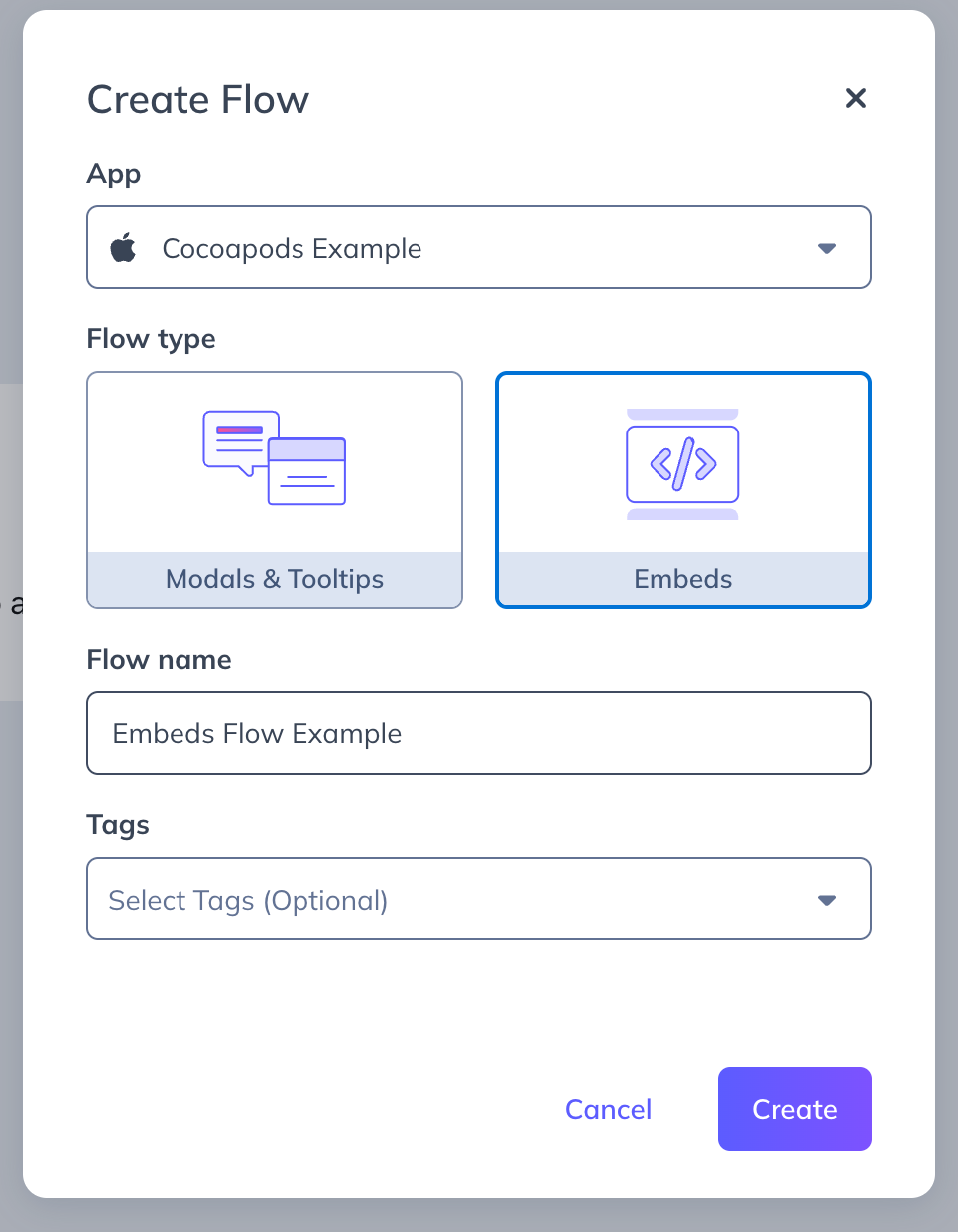
- Create a Flow. When prompted for the pattern, select Embeds (instead of Modals & Tooltips). An Embed Flow can't be switched to Modals or Tooltips later.
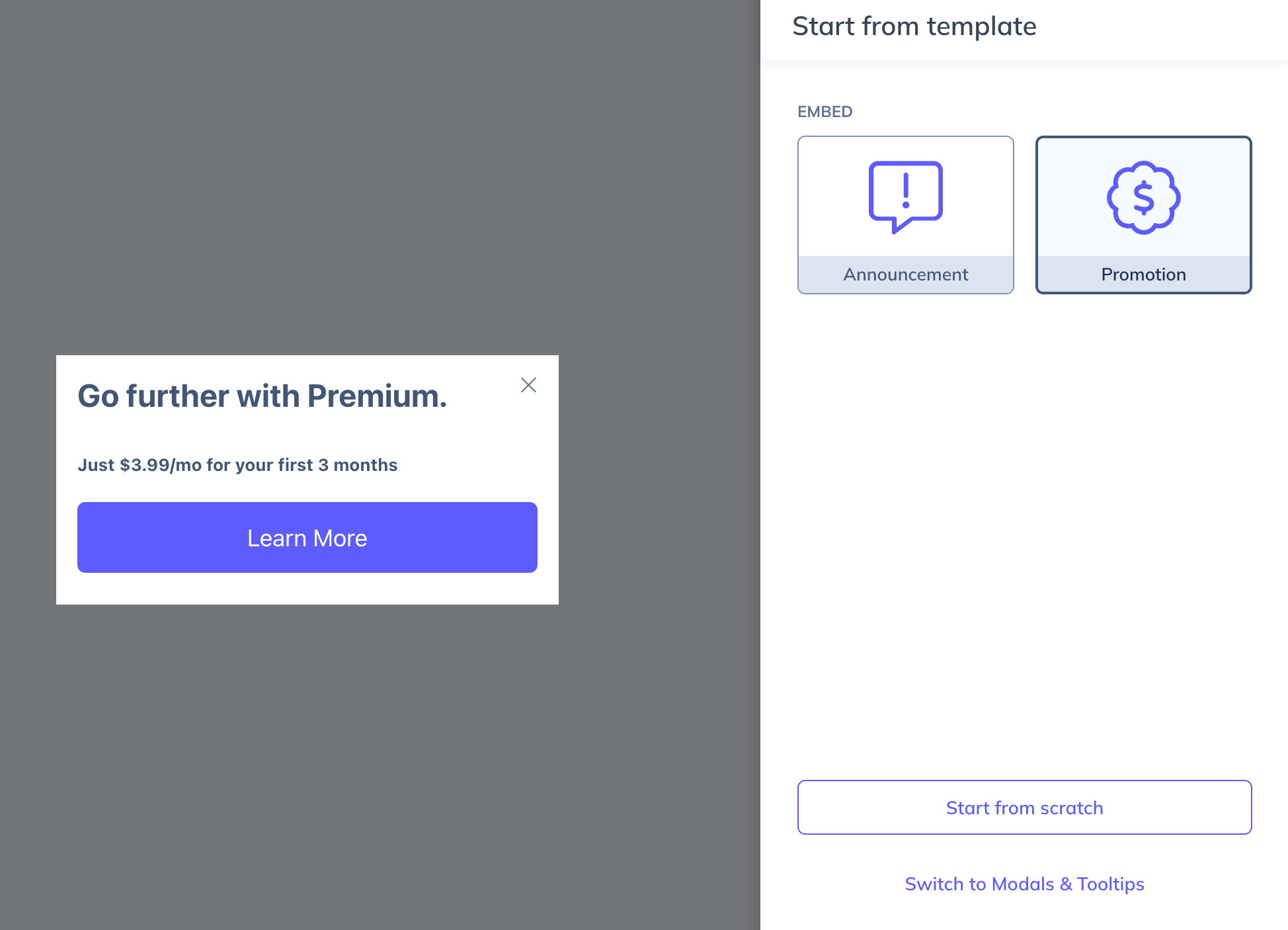
- Choose a template or start from scratch. Hover over a template to preview its content in the preview panel.
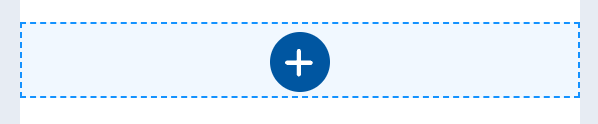
- Add content blocks to the step. Hover over the step in the preview panel and click the + icon — it appears in the center of an empty step, or at the edges of existing blocks. Embeds support the full set of content blocks; see Mobile content blocks for the full block reference, including Video and survey blocks.
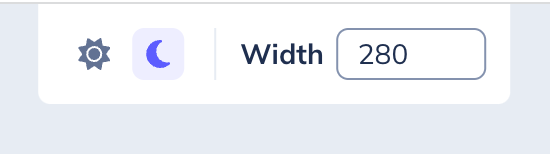
- Set the preview width if you want to see how the Embed renders at different frame sizes. Adjust it in the preview control panel.
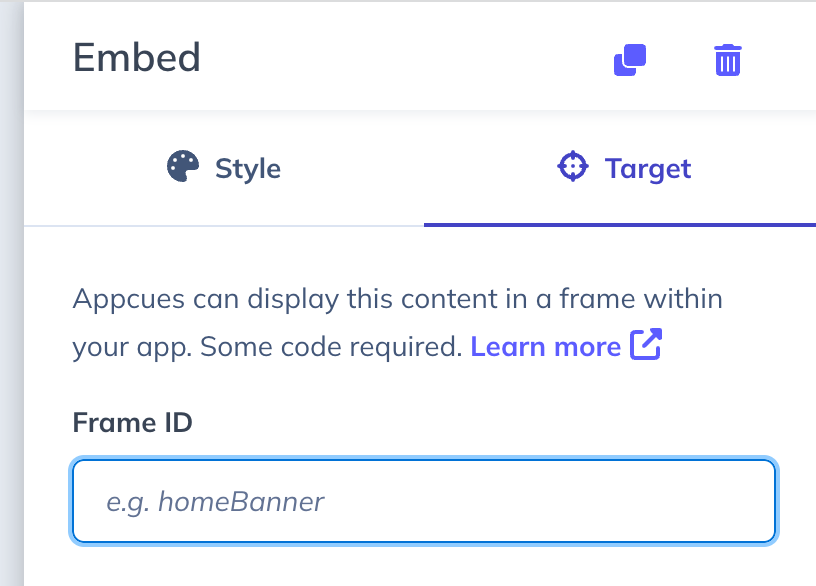
- Target the Embed to a frame. In the Embed step's sidebar, open the Target tab and enter a frame ID in the Frame ID field. This is what tells Appcues where in your app the Embed should render.
Confirm it worked
The Embed appears in the preview panel with your content and targeting set.
To see it on a device, preview the Flow: click the eye icon in the mobile builder, open the link on your device, then navigate to the screen that contains the target frame. The Embed renders inline in that frame.
How Mobile Embeds behave
- An Embed Flow can't contain Modals or Tooltips. Embeds work differently from those patterns, so a Flow is either Embeds or Modals & Tooltips — not a mix.
- Multiple Embed steps share one frame. All steps in an Embed Flow form a single embed group targeting the same frame. Use swipe-for-next-step or progression buttons so users can move through the steps.
- One Embed per frame at a time. If several Embeds target the same frame, only the highest-priority one shows. When the user no longer qualifies for it, the next-highest shows. A screen with multiple frames can show one Embed in each.
If your Embed isn't showing
Work through these in order:
- Frames aren't set up. Confirm your developers completed the frame setup linked in Prerequisites.
- Frame ID doesn't match. The frame ID in the Target tab must match the ID in your app exactly — casing and spacing included.
- Targeting doesn't qualify the user on that screen. Check the Flow's targeting so the user qualifies on a screen where the target frame is present.
If the Embed preview won't load on your device
- The URL scheme isn't configured. Preview hands off from the link into your app through the Appcues URL scheme. If it's not set up, the preview won't open your app — see Preview Mobile Flows and Configure Mobile Deep Links.
- You're not on the right screen. After the preview loads, navigate to a screen that contains the target frame ID — the Embed only renders where its frame exists.
Still stuck?
Collect the following and contact support:
- The frame ID you're targeting and the platform (iOS, Android, React Native, or Flutter).
- Confirmation from your developers that the frame is implemented on the screen you're testing.
- A screenshot or screen recording of the screen where you expect the Embed.
- Whether the Embed fails in preview, in a published Flow, or both.
Use the Mobile Debugger to confirm the SDK is connected and the frame is registered on the current screen.